
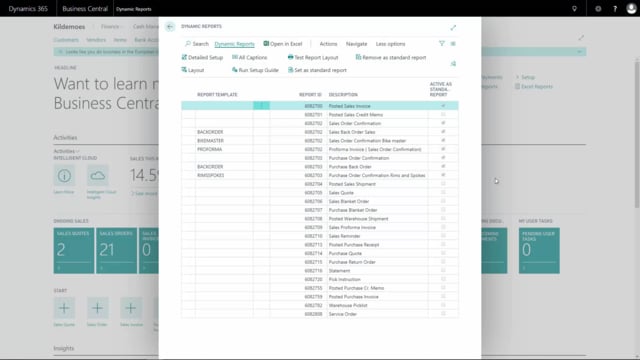


Dynamic Reports lets you control the visual appearance of your reports through layout codes. You set these up in layouts, and each code can define its own fonts, font sizes, table header formatting, colours, and logos. The most common use is showing a different logo than the default one, so a single company can run multiple brands or business units from the same setup.
You create a new layout code either by typing in a new code and filling out the fields manually, or by copying an existing layout. To copy, go to Dynamic Reports, choose Copy to New, give the new layout a code, and confirm. The copy is made instantly, and you can then edit it to match your needs.
What layout codes do in Dynamic Reports
Layout codes are used when you want different setups for your reports. You can adjust a range of visual elements, including:
- Fonts and font size
- Table header font size
- Colours
- Logos
In practice, the logo is what most people change. If you run several brands, you can set up a separate layout code for each one and switch between them as needed.
Example: separate layout codes for different logos
In our setup, we created a layout code called Bike Master. It is identical to the default layout in every way except the logo. This shows how you can keep your standard formatting but swap in a different logo for a specific brand or company.
How to create a new layout code
You have two ways to add a layout code:
- Create from scratch: Type in a new layout code and fill out the fields yourself.
- Copy an existing layout: Go to Dynamic Reports and choose Copy to New. Give the new layout its own code and confirm with Yes. The copy is created, and you can edit it however you like.
Copying is the faster route when you only need to change one or two things, such as the logo, because you keep all the existing formatting and only adjust what is different.
Q&A
What are layout codes in Dynamic Reports?
Layout codes are setups that control the visual appearance of your reports. They let you define fonts, font sizes, table header formatting, colours, and logos so you can use different layouts for different purposes.
What do people most often use layout codes for?
The most common use is showing a different logo than the default one. This is useful when a single company runs multiple brands or business units.
How do I create a new layout code?
You can either type in a new layout code and fill out the fields manually, or copy an existing layout. To copy, go to Dynamic Reports, choose Copy to New, give the new layout a code, and press Yes. You can then edit the copy as needed.