
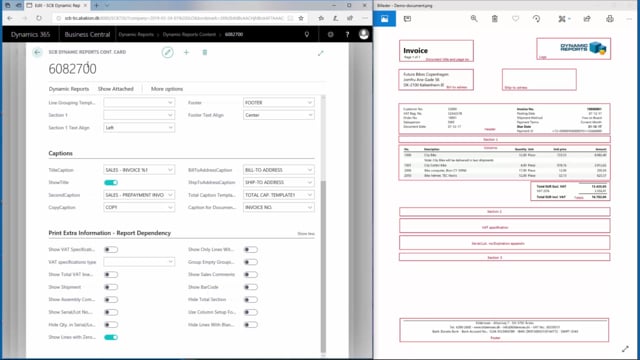


Dynamic Reports in Business Central lets you control the layout and content of your documents through a structured setup. The setup mirrors the layout of the actual document, so the areas you edit in the setup correspond directly to the areas you see on the printed document.
You change global elements like font, size, and logos in the Layouts section, which applies across all documents unless you override them. You change document-specific elements like columns, headers, sections, and footers in the Detail Setup for that particular document. Some elements, such as VAT specification, lot number and expiration appendix, and addresses, are not configured in the Detail Setup. You set those on the edit cards instead.
How Dynamic Reports is structured
Dynamic Reports is made up of areas with content that you can edit. When you look at a document on the right-hand side, you can see these areas laid out. The setup in Dynamic Reports follows the same structure, so each area on the document has a matching area in the setup.
It helps to keep the documentation at your side when you make changes. It makes it much easier to navigate to the right place in the setup and find exactly where you need to make your adjustments.
Layouts control font, size, and logos across all documents
The starting page of Dynamic Reports in Business Central gives you access to the Layouts section. Here you control elements such as font, size, and logos. These settings apply across all documents unless you define something different for a specific document.
Detail Setup controls content for a specific document
The Detail Setup applies to the document you have selected. This is where you set the content, and the areas here are the same ones you see on the document itself.
For example, if you are working on a document and want to change something in the columns, you open the Detail Setup for that specific document. You will find a Columns area there. You go into Columns and change the setup. The different boxes on your document are each represented in the setup, so you can match what you see on the document with what you configure in the setup.
Elements configured on the edit cards instead of Detail Setup
A few elements do not have their own entry in the Detail Setup. These include the VAT specification, the show lot number and expiration appendix, and the addresses. You configure these on the edit cards.
On the edit card you can give the document a title caption along with a number of other report dependencies, such as showing the VAT specification and showing the serial and lot specification. The Dynamic Report content card gives you even more options to choose from when you edit.
Editing headers, sections, columns, and footers
For the basic editing tasks, the setup works the same way across the board. Whether you want to change the header, section one, columns, section two, section three, or the footer, you do it all from a similar setup in Dynamic Reports.
Q&A
Where do I change the font, size, and logos in Dynamic Reports?
You change them in the Layouts section on the starting page of Dynamic Reports. These settings apply across all documents unless you define something different for a specific document.
How do I change the columns on a specific document?
Open the Detail Setup for that specific document, go into the Columns area, and change the setup there. The boxes on your document are each represented in the setup.
Which elements are not configured in the Detail Setup?
The VAT specification, the show lot number and expiration appendix, and the addresses do not have a specific entry in the Detail Setup. You configure these on the edit cards instead.
Where do I set the document title caption?
You set the title caption on the edit card, along with other report dependencies such as showing the VAT specification and the serial and lot specification.
Why should I keep the documentation at hand when editing?
Because the setup mirrors the document layout, having the documentation at your side makes it easier to navigate to the right place in the setup and find exactly where to make your changes.