


Adding the FIK payment ID to a document header in Business Central
When a customer is set up to pay by FIK payment ID, that information is not automatically present on the document header. If you want the payment ID to show on the printed document, you can add it yourself by editing the report layout. Here is how the process works.
Finding the document and opening the detail setup
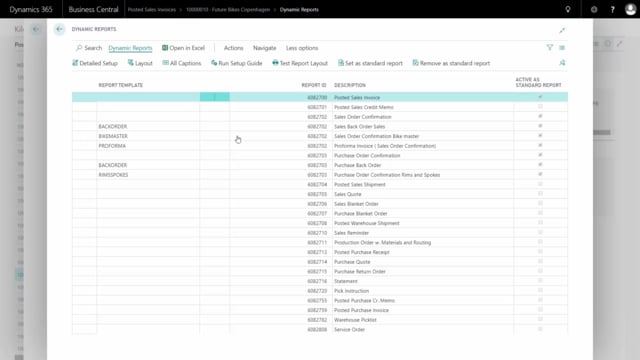
Start in the report and find the document you want to change. Press detail setup to open the layout for editing. From here, locate the header template on the document. This is where you control which fields appear at the top of the printout.
Adding the payment ID field to the header
With the header template open, add the payment ID field at the bottom of the existing fields. When you look for the field, note that the payment ID is a dynamic report field, which means it shows up with a high number. You can also search for it directly if that is easier than scrolling through the list.
Changing the caption on the field
The field comes with a caption set automatically. If you want it to be labelled as something other than the default, you can change the caption to whatever name suits your document.
Printing the document to confirm the change
Once you have added the field and set the caption, go back to your document and print it again. The payment ID now appears on the document header, exactly where you placed it.
Q&A
Why is the FIK payment ID not showing on my document header?
The FIK payment ID is not present on the document header by default, even when the customer is set up to pay by FIK payment ID. You need to add the field to the header template in the report layout yourself.
How do I add the payment ID to a document in Business Central?
Find the document in the report and press detail setup. Open the header template, add the payment ID field at the bottom, and set the caption you want. Then print the document again to confirm the field appears.
Why does the payment ID field have a high number?
The payment ID is a dynamic report field, so it is listed with a high number. You can scroll to it or search for it directly when adding it to the header.
Can I rename the payment ID field on the document?
Yes. The field is given a default caption automatically, but you can change the caption to any label you prefer.