


Transcription of video
The Master Data Import Worksheet in Business Central lets you import items, customers, vendors, and other master data records directly from Excel. You build a reusable template, point it at your Excel file, and import the lines in one operation.
The tool imports both standard Business Central fields and Master Data Information fields. Master Data Information fields are extra fields you add to your database that don’t exist in the normal Business Central tables. You can import data into both types at the same time.
When an import line fails, the worksheet shows the error and keeps the line so you can correct the value and run the import again. You can use a drop-down on the line to select a valid value before retrying.
What the Master Data Import Worksheet does
With the Master Data Import Worksheet you can import items, customers, vendors, and similar records into Business Central. It handles standard fields as well as Master Data fields that don’t sit in the normal tables, which makes it a flexible way to get data into the system.
Importing items from an Excel file
In this example we import two new items, 1002 and 1003, with information attached to them. Some of the fields on these items don’t relate to the standard fields in Business Central. They are added in the database as Master Data Information instead. The goal is to import all of it together using a single template.
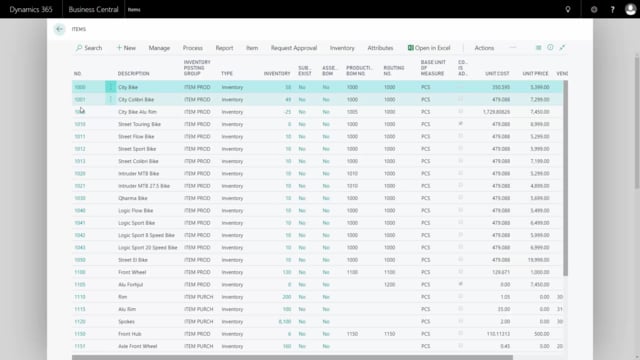
Before the import, the item list in Business Central does not contain items 1002 and 1003. In the Master Data Import Worksheet, you import data into the worksheet by selecting the template you’ve already set up, in this case a template for Bike Items, then choosing the Excel file (called Bike Item) and the worksheet to import from.
The import pulls the information into the worksheet. The Action Message reads Create Items, and there’s a checkmark on the lines that will be processed. Some of the lines relate to Master Data Information and some relate directly to the item table.
Running the import and handling errors
You carry out the action and choose to update if the data already exists. In this run, one line succeeds and the other returns an error. When a line fails, its fields are emptied so you can see exactly where the problem is.
In this case, the Gear value didn’t come in correctly on one of the items, because the text in the field didn’t match a valid value. The line has a drop-down, so you open it, select the value it should have been, and carry out the import again. The error then disappears, which means the import succeeded.
Verifying the imported data
Back on the item list, the new item appears. Open it and all the standard fields are imported correctly. Open the Master Data Information on that item, and the values from the extra columns are imported there as well.
The same approach works for items, customers, vendors, and other record types, which makes the Master Data Import Worksheet a flexible tool for getting data into Business Central.
Q&A
What can you import with the Master Data Import Worksheet?
You can import items, customers, vendors, and similar records into Business Central. It handles both standard Business Central fields and Master Data Information fields that don’t exist in the normal tables.
Can you import fields that aren’t part of the standard Business Central tables?
Yes. If you’ve added fields to your database as Master Data Information, the worksheet imports values into those fields alongside the standard item, customer, or vendor fields in the same operation.
How do you reuse the same import setup?
You create a template, for example a template for Bike Items. When you import, you select the template, choose the Excel file, and pick the worksheet to import from. The template controls how the columns map to fields.
What happens when an import line has an error?
The worksheet keeps the failed line and empties its fields so you can see where the problem is. You can use the drop-down on the line to select a valid value, then carry out the import again. When the line’s error disappears, the import succeeded.
How do you handle a field with an invalid value?
Open the drop-down on the line to see the possible values, select the correct one, and run the import again. This is useful when a text value doesn’t match a valid option, such as a Gear value that didn’t import correctly.