
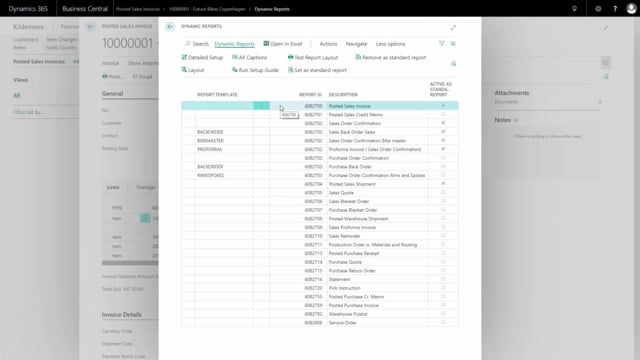


If you want to add information like country of origin to your document layouts in Business Central, you can do it through the Dynamic Reports column setup. You do not need to modify the report itself. You link to the field you need and control how it is displayed.
The country of origin field lives in the Item table. To pull it into your document, you add the item number as a link to the Item table, then add the country of origin field from there.
You can place the caption in front of the text and hide the extra caption in the column header. You can also set the caption to stay blank when an item has no country of origin defined, so empty values do not clutter your printed document.
Adding fields to a document with Dynamic Reports column setup
Say you want country of origin to appear in the description column of your document. You can set this up in Dynamic Reports without changing the underlying report.
Start by searching for Dynamic Reports. Mark the report you want to adjust and press detailed setup. Under Dynamic Reports, go into the column setup and identify the column where you want the information to appear. This is often the description column.
Linking to the item table to retrieve country of origin
The information about country of origin is stored in the Item table, so you need a way to reach it. Press on Fields and add another line. Since the link runs through the item, you first find the field for item number.
In the “using table” setting, you select the Item table. Then you find the field for country of origin, which you can search for directly.
Controlling how the caption is displayed
Once the field is added, you give it a caption. If you want the caption to appear in front of the text, mark that option. You can also hide the additional caption in the column header by marking the relevant setting.
To avoid showing an empty heading when an item has no country of origin defined, mark blank caption if no value. This makes sure the heading on the line only appears when there is an actual value to show.
The result on the printed document
When you print the document, the first item shows the country of origin as expected. On the last two items, nothing appears, because no value is defined on those items and the caption stays blank. This keeps your document clean and only shows the information where it is relevant.
Q&A
How do I add country of origin to a document in Business Central?
Use the Dynamic Reports column setup. Go into the column setup, add the item number to link to the Item table, then add the country of origin field from that table. You do not need to modify the report itself.
Why do I need the item number when adding country of origin?
The country of origin field is stored in the Item table. You add the item number as a link to the Item table so the setup can retrieve the country of origin value for each item.
How do I prevent an empty caption from showing when an item has no country of origin?
Mark the option blank caption if no value. The caption and heading then only appear on lines where a country of origin is actually defined on the item.
Can I place the caption in front of the text instead of in the column header?
Yes. Mark the option to add the caption in front of the text, and mark the option to hide the additional caption in the column header.