
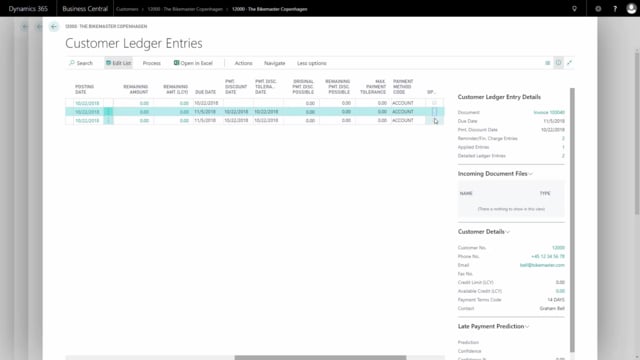


Registering customer payments in Microsoft Dynamics 365 Business Central is done through the cash receipt journal. When money lands in your bank account from a customer, you record the payment in the journal, apply it to the right customer ledger entries, and post it. After posting, the relevant entries are closed and their remaining amounts are zero.
You can apply a payment either by entering the amount manually or by using the Apply Entries function to view the customer’s outstanding entries first. The Apply Entries function lets you confirm that the payment matches the open invoices before you post.
You must specify a balancing account, typically your bank account, and make sure it uses the correct currency for that customer.
Registering a customer payment in the cash receipt journal
When you receive money from a customer in your bank, you start in the cash receipt journal. Here you set up the line for the incoming payment:
- Select that the line is a payment
- Enter a document number
- Set the account type to customer
- Select the customer account
From here you have two options. You can enter the amount directly on the line and apply the payment, or you can start by reviewing the open entries for the customer before deciding what to apply.
Using Apply Entries to match the payment to invoices
To check the payment against what the customer actually owes, go to Actions, then Functions, and choose Apply Entries. This shows the outstanding customer ledger entries for that customer, so you can verify that the payment is correct.
Select the customer ledger entries you want to apply. It might be all of them, or only some. Then choose Actions, Application, and set the Application ID. You can also set the Application ID manually if you already have the information from the journal.
Once you set the Application ID, the line amount is filled in automatically. This amount should match the amount you received in your bank.
Setting the balancing account and currency
Before posting, enter the balancing account. In most cases this is your bank account. Make sure you use the bank account for the correct currency, matching the currency the customer paid in.
Posting the payment
When the line is ready, go to Process, Post, and post the line. The payment is now applied to the customer ledger entries for that specific customer.
Checking that the payment was applied correctly
To confirm the result, find the customer and navigate to the customer ledger entries. For the entries you applied, the remaining amount should be zero, and the entries should be closed. You can see this because the checkmark in the Open field is removed.
Q&A
How do you register a customer payment in Business Central?
Use the cash receipt journal. Create a line for the payment, set the account type to customer, select the customer, enter a document number, apply the payment to the relevant customer ledger entries, set a balancing account, and post the line.
What is the Apply Entries function used for?
Apply Entries shows the outstanding customer ledger entries for a customer so you can verify the payment and select which invoices to apply it to. You reach it through Actions, Functions, Apply Entries.
What is the Application ID and how is it set?
The Application ID links the payment to the selected customer ledger entries. You set it through Actions, Application, or manually if you already have it from the journal. Once set, the line amount is filled in automatically and should match the amount received in the bank.
What should you use as the balancing account when registering a payment?
Use your bank account, and make sure it is the bank account for the correct currency that the customer paid in.
How do you confirm that a payment was applied correctly?
Open the customer and navigate to the customer ledger entries. The remaining amount on the applied entries should be zero, and the entries should be closed, shown by the checkmark in the Open field being removed.