
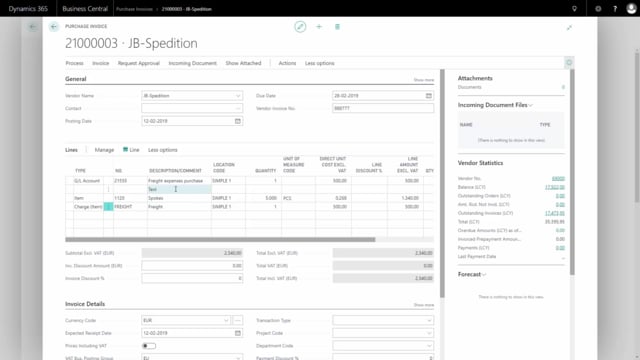


Creating and posting a purchase invoice in Business Central is a straightforward process, but there are a few details worth knowing about line types, item charges, and how the system handles posting. This article walks through the full flow, from selecting a vendor to navigating the posted entries afterwards.
A purchase invoice in Business Central always posts the complete quantity. You cannot change the quantity to receive or the quantity to invoice on a purchase invoice. If you need partial receipts or partial invoicing, you use a purchase order instead.
When you select a vendor, the system fills in the invoice header with information from the vendor card, including the currency code. The vendor invoice number is mandatory and must be entered before you can post.
On the lines you can choose between several line types: G/L account, item, fixed asset, charge item, or no type at all for plain text. Charge items let you assign additional cost, such as freight, to existing or new item ledger entries.
Before posting you can use the preview posting function to see exactly which entries the invoice will create. After posting, the invoice becomes a posted purchase invoice and cannot easily be undone. If the invoice contained an item, the system also creates a separate posted purchase receipt under its own document number.
Where to find the purchase invoice and why the list is usually empty
You find the purchase invoice from the main menu. In most cases your list of purchase invoices will be empty. That is normal. Every time you create a purchase invoice and post it, it disappears from the list and turns into a posted purchase invoice.
The reason is that a purchase invoice always posts in full. You cannot change the quantity to receive or the quantity to invoice on a purchase invoice, so the complete invoice is posted in one go. If you need to control partial receipts or partial invoicing, use a purchase order instead.
Selecting a vendor and filling in the header
You start by selecting a vendor name or vendor number. When you do, Business Central fills in the purchase invoice with information from the vendor card. If you show all fields in the header, you can see exactly which values come from the vendor card.
Scroll down to the invoice details and other tabs, and you will see more information imported automatically, for example the currency code set up on the vendor card.
The vendor invoice number is a mandatory field. You need to fill it in before you can move on. Once that is done, you are ready to enter the lines.
Choosing the right line type on a purchase invoice
Each line has a line type, and your choice determines what the line posts to:
- G/L account: Enter the account number you want to post into. For example, you might post freight directly into a G/L account by entering the quantity and the cost, such as 500 euros.
- No type (blank): Leave the line type empty to enter free text on the purchase invoice.
- Item: Use this when you are actually buying an item. The item price comes from the item card, and you can change it if the price is different in this specific scenario.
- Fixed asset: Use this when you are buying something into one of your existing assets. You then select the asset number, provided you have assets set up in the system.
- Charge (item): Use this to apply cost to your item ledger entries, either on this purchase invoice or on existing item ledger entries.
In practice you would not usually buy freight and items on the same purchase invoice, but it can be done, and it is useful for illustrating how the line types work.
Using charge items to assign freight to item ledger entries
Charge items give you a second way to handle a cost like freight. Instead of posting freight directly into a finance account, you set up an item charge and enter it as a charge line.
When you use a charge item line, you have to assign the line to the item it relates to. You do this from the line’s related information, under item charge assignment.
By default the assignment shows all the items on the current purchase invoice. You can also select other receipt lines, for example lines with the same item number from earlier receipts. You can filter by item number or search by shipment, and you can select lines from different receipts to assign the quantity to.
After selecting the lines, you choose how to split the amount across them. You can split equally or by amount, weight, or volume. Business Central then suggests how to distribute the 500 euros across the different lines.
Checking the figures before posting with statistics and preview posting
Before you post, you can review the invoice in two ways.
You can view the order statistics to check how the figures look before posting.
You can also use preview posting to see which entries the invoice will create before it actually does anything. From the actions menu, choose posting and then preview posting. This shows all the entries the invoice will generate.
In the example, the preview shows that the invoice will create 30 G/L entries. You can see which accounts they go into. They do not have a document number yet because nothing has been posted. You can also drill down to see item charges, VAT entries, and value entries in the same posting view.
Posting the invoice and what gets created
Because a purchase invoice always posts the complete quantities, you simply post the invoice when you are ready. After posting, Business Central asks whether you want to open the invoice to view it.
A posted invoice cannot easily be undone, so it is worth opening it to see exactly what happened. From the posted invoice you can navigate into the entries that were created and see how they are posted.
Finding the posted purchase receipt when the invoice includes an item
If your invoice contained an item, the system also creates a posted purchase receipt. This receipt has its own document number, which is why it does not appear under the navigate tab of the posted invoice.
To find it, search for the posted purchase receipt list. The receipt from your invoice is the most recent one, so you may want to change the sorting order to bring it to the top. When you open it, you will see that the document number matches the posted invoice. The view looks similar, but this is the posted purchase receipt coming from the same transaction.
From the receipt you can navigate into the related entries, which are your item ledger entries and the posted purchase receipt itself.
This also means that if your purchase invoice had no item on it, no posted purchase receipt would be created.
Q&A
Can you change the quantity to receive or invoice on a purchase invoice in Business Central?
No. On a purchase invoice you cannot change the quantity to receive or the quantity to invoice. The complete quantity is always posted. If you need partial receipts or partial invoicing, use a purchase order instead.
Why is my list of purchase invoices empty?
This is normal. Every time you create a purchase invoice and post it, it disappears from the list and becomes a posted purchase invoice.
What line types can you use on a purchase invoice?
You can use G/L account, item, fixed asset, charge (item), or no type at all. A blank line type lets you enter free text on the invoice.
What is a charge item used for?
A charge item lets you apply a cost, such as freight, to your item ledger entries. You can apply it to items on the current purchase invoice or to existing item ledger entries.
How do you assign a charge item line to items?
From the line’s related information, open item charge assignment. By default it shows the items on the current invoice, but you can select other receipt lines and filter by item number or shipment. You then choose how to split the amount across the lines, either equally or by amount, weight, or volume.
How can you check what an invoice will post before posting it?
Use the order statistics to review the figures, and use preview posting from the actions menu to see all the entries the invoice will create before it actually posts them.
Why does the posted invoice not show a posted purchase receipt under the navigate tab?
The posted purchase receipt is created under its own separate document number, so it does not appear under the navigate tab of the posted invoice. You can find it by searching the posted purchase receipt list.
Does a purchase invoice always create a posted purchase receipt?
No. A posted purchase receipt is only created if the invoice includes an item. If there is no item on the invoice, no posted purchase receipt is created.