
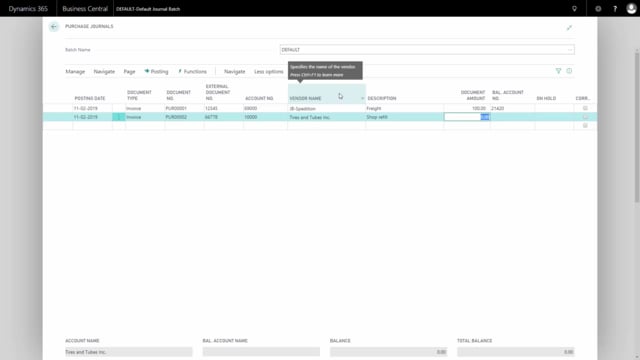


You can post purchase invoices and acquisitions directly in the purchase journal in Business Central without creating a purchase document. This is useful when you only have something like an email as documentation and don’t need the full purchase order or invoice workflow.
When you post directly in the journal, you enter the vendor on one line and the balancing account, typically a cost account in the income statement, on the other. The total balance must reach zero before you can post.
Business Central handles currency conversion automatically. If a vendor is set up in EUR, the journal calculates the amount in your local currency (DKK) for you.
VAT is calculated based on the posting setup on the chart of accounts. For EU purchases, the system creates both a purchase VAT entry and an acquisition VAT entry that offset each other. For domestic purchases, it creates a single purchase VAT entry. Whether VAT is calculated and how depends on both your general posting setup and your VAT posting setup.
Posting purchases directly in the purchase journal
You don’t always need a purchase document to post an invoice or an acquisition. In Business Central you can post directly in the purchase journal. You post to a vendor on one side and to the income statement on the other side, all in the same line entry.
The document type can be an invoice, a payment, a credit memo, and so on. In this example we post an invoice. You enter the external document number and the vendor number on the line. You then add a description, for example “Freight”, and the document amount, which is the amount you pay the vendor.
In many cases you won’t have a formal document behind this. It could just be an email. That’s exactly the scenario where posting directly in the journal makes sense.
Automatic currency conversion for foreign vendors
After entering the line, the total balance shows -746. The vendor is a German vendor set up in EUR, so Business Central automatically converts the amount to your local currency, which is DKK. You don’t have to do the conversion manually.
To balance the entry, you choose a balancing account. In this example it’s account 4 for purchases from the EU. As soon as you select the balancing account, the total balance becomes zero, because the journal now has both accounts to post to.
Posting a second purchase in the same journal
You can add more purchases to the same journal. For a second purchase you again enter an external document number and the vendor. In this example we buy from Tires and Tubes, which delivers parts and resources we sell in our shops. We pay them 1,000 DKK for their work.
Here you enter a domestic balancing account. The difference between this line and the EU line is whether purchase VAT applies and how. That’s controlled by the chart of accounts and relates to the balancing account you choose.
On the lines you can also set up dimensions, or change the default dimension that comes from the vendor, before you post the journal.
How VAT is posted for EU purchases
After posting, you can check the chart of accounts to see what the journal created. Navigate to the first account you posted to, the EU account. You’ll see the entry with the description “Freight” and the amount 764 DKK in local currency.
When you navigate the line, you can see all created entries. The journal creates a VAT entry, where you can see the VAT amount on the base amount. In the G/L entries you can see the total amount.
Because this is an EU account, the system creates two VAT entries. One is the purchase VAT and the other is the acquisition VAT. They offset each other, so the EU purchase nets out as expected.
How VAT is posted for domestic purchases
For the domestic account, navigate into the entries and select the relevant one. The amount posted was 1,000 DKK. In the entries you can see that the journal created a cost account entry of 800 DKK and a VAT amount of 200 DKK, which together equal the vendor amount of 1,000 DKK.
The difference between the EU and domestic handling comes from the setup on the chart of accounts. What gets posted depends on both your general posting setup and your VAT posting setup, which you can see in a column on the chart of accounts.
Q&A
Can you post a purchase invoice without creating a purchase document in Business Central?
Yes. You can post purchase invoices and acquisitions directly in the purchase journal. You post to the vendor on one side and to a balancing account, typically a cost account, on the other. This is useful when you only have informal documentation such as an email.
How does Business Central handle currency when posting to a foreign vendor in the journal?
If the vendor is set up in a foreign currency such as EUR, Business Central automatically converts the amount to your local currency (DKK). You don’t have to convert it manually.
Why does an EU purchase create two VAT entries?
For EU purchases, Business Central creates both a purchase VAT entry and an acquisition VAT entry. These two entries offset each other, so the VAT equalizes itself.
What controls how VAT is calculated when posting in the purchase journal?
VAT calculation depends on the posting setup on the chart of accounts. Both your general posting setup and your VAT posting setup determine whether VAT applies and how it’s posted. You can see these in a column on the chart of accounts.
How do you balance a line in the purchase journal?
You select a balancing account on the line. Once you choose it, the total balance becomes zero because the journal then has both the vendor account and the balancing account to post to.