


If you use the VAT Rate Per Dimension feature in Business Central, you may run into an error when you enter a dimension value that should change the VAT rate. The error message tells you that the account number must be equal to an account, but that message is misleading. The real cause is your VAT posting setup.
The fix is to check the VAT calculation type in your VAT posting setup. VAT Rate Per Dimension only works when the VAT calculation type is set to Normal VAT. If it is set to Full VAT, you get the error. Once you change it to Normal VAT, the error disappears and the VAT product posting group and VAT percentage update according to your VAT Rate Per Dimension setup.
The error message you see and what it actually means
When you enter a dimension value that is supposed to manage the VAT rate through the VAT Rate Per Dimension setup, Business Central may throw an error saying that the account number must be equal to an account. This message points you in the wrong direction. The problem has nothing to do with the account number. It comes from how your VAT posting setup is configured.
Where to look in the VAT posting setup
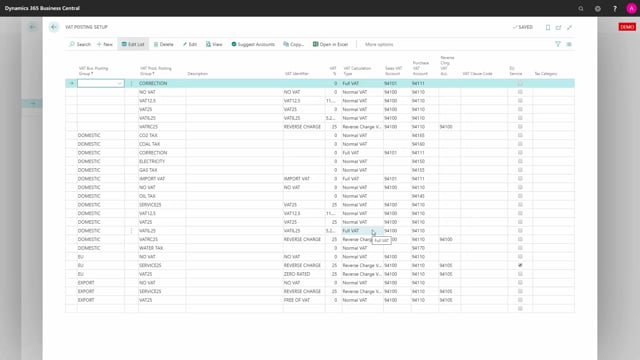
To find the cause, clear the error and open the VAT posting setup. Locate the combination you are working with. In this example, the combination is the domestic VAT business posting group together with the VAT product posting group for 6.25 percent. Check the VAT calculation type for that combination.
Set the VAT calculation type to Normal VAT
If the VAT calculation type is set to Full VAT, the VAT Rate Per Dimension feature does not work, and you get the misleading error. For VAT Rate Per Dimension to function, the VAT calculation type must be set to Normal VAT.
Once you change the setting to Normal VAT and go back to apply the dimension value again, the error no longer appears. The VAT product posting group and the VAT percentage now change according to the configuration in your VAT Rate Per Dimension setup, exactly as intended.
Q&A
Why do I get an account number error when using VAT Rate Per Dimension in Business Central?
The error message saying the account number must be equal to an account is misleading. The actual cause is your VAT posting setup, where the VAT calculation type is set to Full VAT instead of Normal VAT.
What VAT calculation type does VAT Rate Per Dimension require?
VAT Rate Per Dimension only works when the VAT calculation type in your VAT posting setup is set to Normal VAT. If it is set to Full VAT, the feature fails and produces the error.
How do I fix the VAT Rate Per Dimension error?
Clear the error, open the VAT posting setup, find the relevant VAT business and product posting group combination, and change the VAT calculation type to Normal VAT. When you apply the dimension value again, the VAT product posting group and VAT percentage update correctly.