
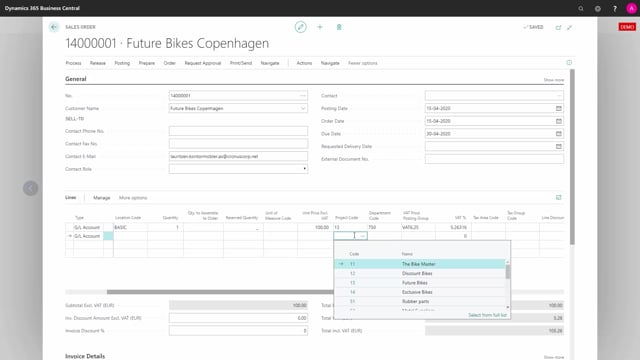


If you use the VAT rate per dimension feature in Business Central, the setup can apply automatically on sales lines, not just on the general ledger. When you enter a dimension value on a sales line, the VAT product posting group and the VAT percentage update according to your configuration.
To make this work, you must enable sales lines in the VAT rate per dimension setup. The setup then applies to all sales documents, including sales orders.
The automatic update only triggers on the dimension that controls the setup. If your setup uses a single managing dimension, only that dimension drives the change. If your setup uses a dimension combination, you must enter all the dimension values in that combination before the VAT changes.
Enabling VAT rate per dimension on sales lines
For the setup to apply on sales lines, you first have to enable sales lines in the VAT rate per dimension setup. Once enabled, it works the same way across all sales documents. The example below uses a sales order, but the behaviour is identical for any sales document type.
To follow what happens, it helps to personalize the sales line view so you can see the relevant columns. In this example, the page shows the two global dimensions, the VAT product posting group, and the VAT percentage. With these columns visible, you can watch the values change as you fill in the line.
How the VAT updates when you enter dimensions on a sales line
Start by entering a line as normal. In this case, the type is G/L account, followed by the account number. When the line is created, the project code fills in automatically, but the department code stays empty. At this point the VAT product posting group is VAT25 and the VAT percentage is 25.
Next, apply the second dimension from the setup and leave the line. Once you do, the VAT product posting group and the VAT percentage update to match the configuration in VAT rate per dimension. The change is triggered by the dimension that controls the setup.
Single managing dimension versus dimension combinations
The example above uses a single managing dimension. That means one dimension drives the VAT change on its own.
If your setup is based on a dimension string instead, the update only works when all the dimension values in that string are present on the line. For example, if the string combines the project code and the department code, both must be filled in before the VAT updates.
In this example, the department code is the dimension managing the setup. Because the setup depends on that department code, the VAT does not change until the department code is entered on the line. Keep this in mind when you design your setup: the more dimension values a combination requires, the more values you need to fill in before the automatic VAT calculation kicks in.
Q&A
Does VAT rate per dimension work on sales documents?
Yes. If you enable sales lines in the VAT rate per dimension setup, the setup applies on sales lines for all sales documents, including sales orders. When you enter the controlling dimension, the VAT product posting group and VAT percentage update automatically.
Why doesn’t the VAT update when I enter a dimension on a sales line?
The VAT only updates when the dimension that controls the setup is present on the line. If your setup is based on a specific dimension, such as the department code, you must enter that dimension value before the VAT changes.
What happens if my setup uses a dimension combination instead of a single dimension?
If the setup is based on a dimension string, all the dimension values in that string must be filled in before the VAT updates. For example, if the string combines the project code and the department code, both have to be present on the line.