
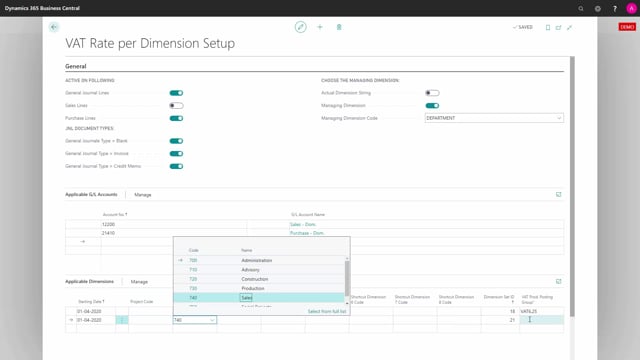
If you need VAT rates to depend on dimension values in Microsoft Dynamics 365 Business Central, you can use the VAT Rate per Dimension Setup. This lets you define that a specific combination of account number, dimension values, and VAT product posting group triggers a particular VAT rate.
You set a starting date on each setup line, so the configuration only applies from a given date onward. This makes it possible to plan VAT changes ahead of time.
The setup works with both global dimensions and shortcut dimensions. You decide whether it matches on a single managed dimension, such as Department, or on an actual dimension string that combines several dimensions.
When a posting matches the account, the dimension values, and the date, Business Central applies the VAT product posting group you defined. You can add as many setup lines as you need and differentiate between them.
Setting up VAT rates per dimension in Business Central
In the VAT Rate per Dimension Setup, you start by defining a starting date. This is the date from which the setup applies, so you control exactly when a new VAT rule takes effect.
The setup gives you access to your two global dimensions plus six of your shortcut dimensions. That means you have a broad set of dimensions to build your rules on.
Choosing between managed dimension and actual dimension string
How the setup behaves depends on whether you work with a managed dimension or an actual dimension string.
If you use a managed dimension, the setup looks only at the columns you have configured. For example, if you have only set up the managed dimension for Department, the system looks solely at the department code when it decides whether to apply the setup.
You then define which dimension values the setup should apply to. If you choose, for instance, only the social projects, the rule applies to those values alone. Together with the VAT product posting group, the combination of account number, department code, and dimension value determines when the setup triggers.
If you instead choose the actual dimension string, you can combine your department code with other dimensions. This gives you more precise control. The configuration then triggers only when you post on one of the specified accounts and apply both the project code and the department code with the matching dimension values. When all conditions are met, Business Central uses the VAT product posting group defined in the setup.
Building multiple setup lines
You are not limited to a single rule. You can add as many setup lines as you need and differentiate between them, so different account and dimension combinations point to different VAT product posting groups. This makes it practical to handle several VAT scenarios in the same setup.
Q&A
What does the VAT Rate per Dimension Setup do in Business Central?
It lets you apply a specific VAT product posting group based on a combination of account number, dimension values, and a starting date. When a posting matches the conditions, Business Central uses the VAT rate you defined.
Can I control from which date a VAT rate applies?
Yes. Each setup line has a starting date, so the configuration only applies from that date onward. This lets you schedule VAT changes in advance.
What is the difference between using a managed dimension and an actual dimension string?
With a managed dimension, the setup looks only at the columns you have configured, such as the department code. With an actual dimension string, you can combine the department code with other dimensions to make the rule more precise.
How many VAT rules can I set up per dimension?
You can add as many setup lines as you need and differentiate between them, so different account and dimension combinations trigger different VAT product posting groups.
Which dimensions can I use in the setup?
You can use your two global dimensions plus six of your shortcut dimensions.