
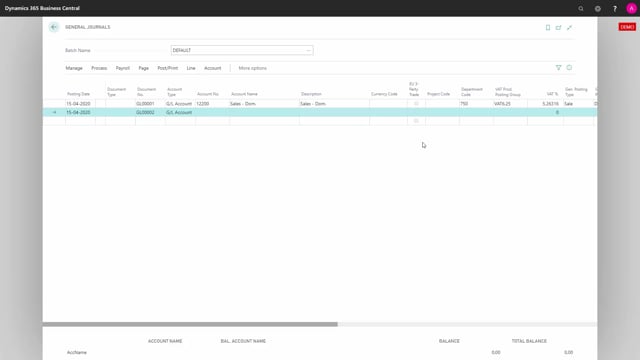


When you work with VAT in Business Central, you can set up the system to apply different VAT rates automatically based on the dimensions you use. This means you don’t have to remember to change the VAT product posting group manually every time you post to a specific department or project. Once you’ve configured VAT rate per dimension, Business Central updates both the VAT product posting group and the VAT percentage the moment you enter the relevant dimension code on a journal line.
You set this up so that when you enter a department code on a general journal line, the system swaps the default VAT product posting group for the one you defined in your setup. The VAT percentage changes accordingly. This removes a manual step and reduces the risk of posting with the wrong VAT rate.
Showing the relevant columns in the general journal
To see what happens, start by making the right fields visible in your general journal. Use Page, then Show more columns, and personalise the page to display the columns you need.
In this example, the page shows:
- Project code and department code, which are the global dimensions
- VAT product posting group
- VAT percentage
The VAT product posting group and VAT percentage fields are shown specifically so you can follow what the system does when VAT rate per dimension has been set up.
How Business Central applies the VAT rate automatically
Enter the account number you’ve set up. By default, the line fills in with the standard VAT product posting group and the corresponding VAT percentage for that account.
Next, enter the dimension in the department code, the same one you used during setup. When you move to the next line, you can see that the VAT product posting group has changed to the one you chose in your setup, and the VAT percentage has updated to match.
The system handles this automatically. You don’t have to change the VAT product posting group by hand when you want to apply a different VAT rate for a given dimension.
Q&A
What does VAT rate per dimension do in Business Central?
It lets Business Central apply a different VAT rate automatically based on the dimension you enter on a journal line. When you enter the configured dimension code, the system updates the VAT product posting group and the VAT percentage to the values you defined in your setup.
Do I have to change the VAT product posting group manually?
No. Once VAT rate per dimension is set up, the system updates the VAT product posting group and VAT percentage automatically when you enter the relevant dimension code. You don’t have to do it by hand.
How do I see the VAT fields in the general journal?
Go to Page, then Show more columns, and personalise the page to display the columns you want. To follow the VAT behaviour, add the VAT product posting group and VAT percentage fields, along with your global dimensions such as project code and department code.
When does the VAT product posting group change on a journal line?
It changes when you enter the department code dimension that you configured during setup. When you move to the next line, the VAT product posting group switches to the one chosen in your setup and the VAT percentage updates accordingly.