


The VAT Rate per Dimension feature in Microsoft Dynamics 365 Business Central lets you control which VAT product posting group is applied based on the dimension you post with. Instead of relying on the default VAT posting group on the G/L account, you can set up rules that override it when a specific dimension, such as a department, is used.
You activate the setup on general journal lines, sales lines, or purchase lines. You also choose which general journal document types it applies to.
You can base the VAT rate on a single managing dimension or on a full dimension string. A managing dimension looks only at one dimension code. A dimension string uses the combination of all dimension columns you fill out.
You define which G/L accounts the setup applies to, and you set a start date so the rule only takes effect from a chosen date.
Where to find VAT Rate per Dimension in Business Central
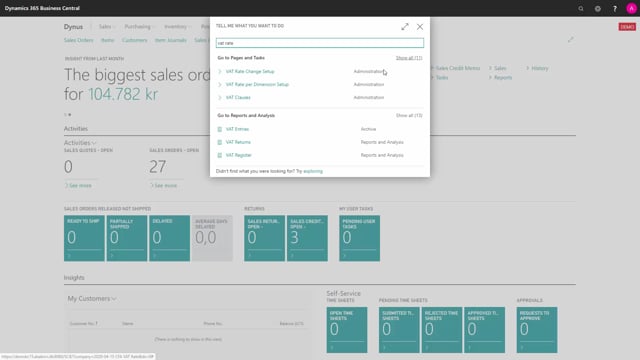
You find the feature by searching for “VAT Rate per Dimension” in Business Central. From there you set up the rules that determine which VAT product posting group is used for a given combination of account and dimension.
Activating the setup on journal, sales, and purchase lines
On the General tab you decide where the VAT rate per dimension should be active. You can enable it on:
- General journal lines
- Sales lines
- Purchase lines
Under general journal document types, you specify which general journal type the setup is enabled for.
Choosing between a managing dimension and a dimension string
When you set up the rule, you choose how the VAT rate is determined. You have two options:
- Managing dimension: One single dimension defines the VAT rate. This is the simplest approach. You pick the dimension code that should act as the managing dimension, for example Department.
- Dimension string: The VAT rate is determined by the combination of all the dimension columns you fill out.
This distinction matters when you reach the dimension table. If you use a managing dimension such as Department, Business Central only looks at the Department code. It ignores the other columns even if you fill them out. If you use a dimension string, it uses the combination of all the columns.
Defining applicable G/L accounts and start date
Under applicable G/L accounts, you define the accounts where the setup should take effect. You can select multiple G/L accounts.
Under applicable dimensions, you set the start date for when the setup should work from. The first two columns in this table are your global dimensions.
Assigning the VAT product posting group
The most important step is choosing the VAT product posting group that the combination of account number and dimension should map to. This is the value that overrides the default when the conditions are met.
For example, if you post on an account and enter the department code instead of the account’s normal VAT posting group, Business Central replaces it with the VAT product posting group defined in this setup. The replacement applies from the start date you set, for instance the 1st of April.
Q&A
What is the VAT Rate per Dimension feature in Business Central?
It lets you override the default VAT product posting group on a G/L account based on the dimension you post with. You define rules that link a combination of account and dimension to a specific VAT product posting group.
What is the difference between a managing dimension and a dimension string?
A managing dimension uses a single dimension code to determine the VAT rate and ignores other dimension columns. A dimension string uses the combination of all the dimension columns you fill out.
Where can you activate VAT Rate per Dimension?
You can activate it on general journal lines, sales lines, and purchase lines. For journals, you also specify which general journal document types it applies to.
Can you limit the setup to specific G/L accounts and a date?
Yes. You select which G/L accounts the setup applies to, and you can pick multiple accounts. You also set a start date so the rule only takes effect from that date onward.