
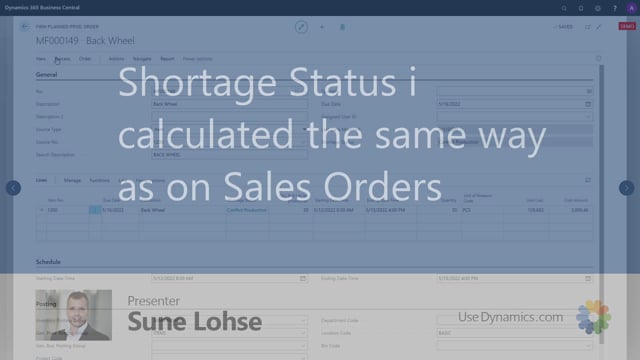


If you work with production orders in Microsoft Dynamics 365 Business Central, you can calculate shortage status in two ways. The first is to run it manually on a single production order using the Calculate Shortage Status function. The second is to run a report that calculates shortage status across all production orders, or a filtered selection of them, in one batch. This works in the same way as calculating shortage status on sales orders.
Calculate shortage status on a single production order
To check the shortage status for one specific production order, you use the Calculate Shortage Status functionality directly on that order. This gives you a manual, order-by-order view of what is missing to fulfil the production.
Calculate shortage status on multiple production orders at once
When you need an overview across many orders, you run the report that calculates shortage status. You can run it on all production orders or apply a filter to limit it to a specific selection. The report processes them together as a batch, so you do not have to open each order individually.
Q&A
How many ways can you calculate shortage status on production orders in Business Central?
There are two ways. You can run it manually on each production order using the Calculate Shortage Status function, or you can run a report that calculates shortage status on all production orders or a filtered selection in one batch.
Can you calculate shortage status on several production orders at the same time?
Yes. The report to calculate shortage status lets you process all production orders, or a filtered set of them, in one batch instead of handling each order individually.
Is calculating shortage status on production orders different from sales orders?
No. The two methods work the same way as on sales orders. You can either calculate shortage status manually on a single order or run a batch report across multiple orders.