
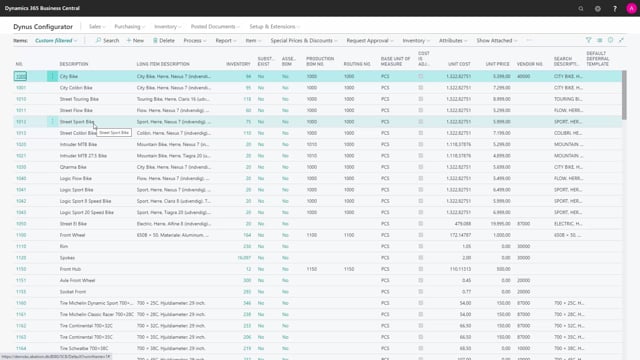


When you use the order hierarchy configurator in Business Central, you decide which items to plan manually and which items to plan through MRP or the requisition worksheet. You make this distinction by setting the “Include in Hierarchy” checkmark on the item or SKU card.
You set the “Include in Hierarchy” checkmark on the Planning tab of the item or SKU card. This marks the items that belong to a hierarchy and that you want to handle directly from the sales order.
You should filter out hierarchy items when you run MRP or the requisition worksheet. Planning these items both manually from the sales order and through MRP creates double handling, so you exclude them from the planning run.
You should define a strategy where the top of your hierarchy, or a specific bundle of items, is handled through hierarchies. You then plan only the remaining items through MRP to keep inventory at normal levels.
Marking items for the hierarchy with the Include in Hierarchy checkmark
When you build hierarchies in Business Central, you need to tell the system which items belong in them. You do this on the Planning tab of the item or SKU card, where you set the “Include in Hierarchy” checkmark. This is how you determine which items to plan manually and which to handle through your normal replenishment process.
Think of a typical hierarchy of items: production items at the top, and purchase items further down. Each item has a low-level code that shows where it sits in the structure. Normally you would replenish all of these items by running MRP, the planning worksheet, or other replenishment methods.
Why hierarchy items should be planned manually from the sales order
When you start using the configurator, some parts of the hierarchy are better planned manually. These are the items you want to bundle specifically to a top-level sales order. You set the “Include in Hierarchy” checkmark on those items so they are tied to the hierarchy and handled directly from the sales order.
It does not make sense to handle these items both ways. If you create orders directly on the sales order by unfolding the hierarchy, and then also try to plan for them through MRP, you end up planning the same demand twice. That is why these items need to be kept out of the planning run.
Filtering hierarchy items out of MRP and the requisition worksheet
When you run MRP or the requisition worksheet, filter out the items that have the “Include in Hierarchy” checkmark. That way the planning run only covers the remaining items, and you fulfil inventory normally on those.
The strategy is straightforward. Define the top of your hierarchy, or whatever bundle of items you want, through hierarchies. Handle the orders for those items from the sales order by unfolding the hierarchy. Then, when you run planning, filter on items without the “Include in Hierarchy” checkmark so you only plan for the items that should go through your normal replenishment.
Q&A
Where do you set the Include in Hierarchy checkmark in Business Central?
You set the “Include in Hierarchy” checkmark on the Planning tab of the item card or SKU card. This marks the item as part of a hierarchy that you handle directly from the sales order.
Should hierarchy items be included when you run MRP?
No. You should filter hierarchy items out of MRP and the requisition worksheet. These items are handled manually from the sales order, so planning them through MRP as well would create double handling of the same demand.
How do you make sure MRP only plans the right items?
When you run the planning worksheet, filter on items that do not have the “Include in Hierarchy” checkmark. The planning run then only covers the remaining items, so you fulfil inventory normally on those while handling hierarchy items from the sales order.
What strategy should you use for items handled through hierarchies?
Define the top of your hierarchy, or a specific bundle of items, through hierarchies. Handle the orders for those items from the sales order by unfolding the hierarchy, and exclude them from your MRP planning runs.