
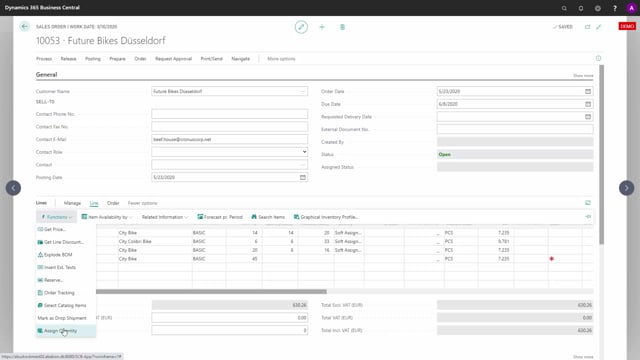


The assign quantity function in Business Central lets you allocate available inventory to specific sales order lines based on a calculated inventory profile. It uses the same engine that powers the graphical inventory profile and other related apps.
When you run assign quantity, the system draws an inventory profile in the background and works out exactly how much you can ship. It looks at the shipment dates on all the lines and calculates the lowest available inventory across those dates.
The function only counts the quantity that has already been assigned, not the full demand. This means it tells you what you can realistically commit to a customer, even when you have backlogs and uncovered demand on the same item.
How the assign quantity engine calculates available inventory
When you use assign quantity, it builds on the same engine used for the graphical inventory profile and other apps. It draws the inventory profile to calculate how many units you can ship.
Take a practical example. On one item line, the assigned quantity is changed to six. Another item line on the same item carries a quantity of a thousand. The system looks at the shipment dates on all the lines, where the last line falls on March 4, and draws an inventory profile from that.
You do not have to trigger this manually to understand what is happening. The engine builds the inventory profile in the background as soon as you work with the assign quantity function, using the same checkmark settings you defined in the assign quantity calculation for that item.
Reading the inventory profile for backlogs and available quantity
If you open the full inventory profile, you can see how much inventory you have and how much demand is not yet covered. In this example, there are a lot of minus values, which means there are a lot of backlogs on the item.
The assign quantity calculation behaves differently from the full inventory view. It includes only the assigned quantity, not the full quantity on the lines. With the assigned quantity changed from sixteen to six, the calculation shows the lowest inventory will be ten.
From an assigning perspective, that means you have ten units available. If you reassign or create a new sales order line on item thousand at location Basic, the system can assign ten units, as long as it falls within the possible dates.
What this means for committing quantities to customers
If you select assign quantity on the last line, it assigns ten units because that is what is actually possible. The function calculates mathematically what you can deliver and gives you the best solution for the customer.
This keeps your commitments realistic. Instead of promising the full demand on a line where inventory does not cover it, the function shows you the quantity you can genuinely assign within the relevant shipment dates.
Q&A
What does the assign quantity function do in Business Central?
It allocates available inventory to sales order lines by calculating how many units you can realistically ship. It draws an inventory profile based on the shipment dates of all the lines and only counts the assigned quantity, not the full demand.
Why does assign quantity show a different number than the full inventory profile?
The full inventory profile shows all demand, including uncovered backlogs. The assign quantity calculation includes only the assigned quantity, so it reflects what you can genuinely commit. In the example, this gives ten available units even though the full profile shows backlogs.
Does the system limit how much I can assign to a customer?
Yes. It calculates mathematically what is possible within the relevant shipment dates. If only ten units are available, it assigns ten, even if the line demand is higher. This keeps your delivery commitments realistic.
Do I need to trigger the inventory profile manually before assigning?
No. The engine draws the inventory profile in the background as soon as you work with the assign quantity function, using the checkmark settings you defined in the assign quantity calculation for the item.