


Assigned quantity in Business Central lets you reserve stock for specific sales orders before items are picked or shipped. The challenge comes when you want to prioritise one customer over another, because the standard assignment logic does not always give your most important customer the full quantity they need.
You can solve this by using locked assignments. When you set an assignment to locked, the salesperson signals that this customer must keep their quantity. You then run the report Assign Sales Order Quantity, which deletes all soft assignments and respects the locked ones. This reassigns stock away from lower-priority orders so your prioritised customer gets their full quantity.
Before running the report, you must manually set the locked quantity to the amount you want, because the system will not override a locked assignment. The total assigned quantity can never exceed available stock, so prioritising one customer means others lose pieces.
Prioritising customers with assigned quantity
One of the typical user stories we see covered with assigned quantity is the ability to prioritise customers. The standard logic does not always give your most important customer everything they need.
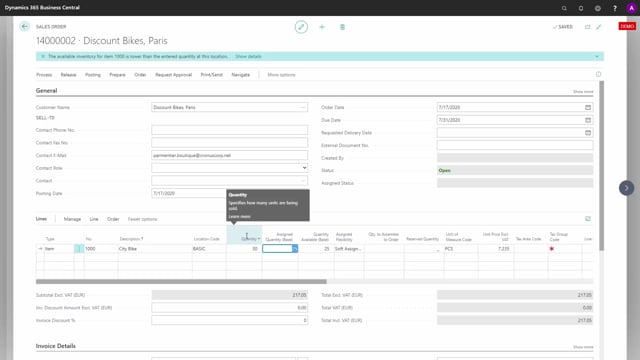
In this example, you enter 30 on a sales order line for a very important customer, but the system assigns only 25. That is a problem when this is your main customer. Looking at the graphical profile without the assigned quantity, you can see this order on the right-hand side did not get everything assigned, and other orders are not fully covered either.
Using locked assignments to control priority
In real life, you want to reassign stock away from some of the other customers, because you know there are future customers who may not have been promised anything yet. If they were promised, the salesperson should lock that assignment.
To handle this, you change the assignment flexibility to locked only. This makes it possible to run the report Assign Sales Order Quantity. The agreement in your organisation is that the report deletes all soft assignments and respects all locked assignments.
Running the Assign Sales Order Quantity report
Because the assignment is locked, you first have to manually change the quantity to 30. The system will not override a locked value on its own, so you set it to the amount you want the customer to have.
You then run the report Assign Sales Order Quantity with the option to respect the locked assignment. In this scenario, you run it for just this one item.
The report deletes all the soft assignments and keeps the ones the salesperson locked. The locked order is reassigned with the quantity they should have.
The result on the stock profile
If you look at the graphical profile now, including the assigned quantity, it still stays at or above zero, so everything is correct. The total assigned quantity never exceeds available stock.
The last order now has a quantity of 30. Some of the other orders have given up five pieces so you can fully supply your prioritised customer.
Q&A
What does locking an assignment do in Business Central?
A locked assignment tells the system that the customer must keep their quantity. When you run the Assign Sales Order Quantity report and choose to respect locked assignments, the locked quantity is preserved while soft assignments are deleted and reassigned.
How do you prioritise an important customer when stock is limited?
You set the assignment flexibility to locked, manually enter the quantity you want the customer to have, and run the Assign Sales Order Quantity report. The report deletes soft assignments from lower-priority orders and keeps the locked quantity for your prioritised customer.
Why do I have to manually set the quantity before running the report?
Because a locked assignment is not overridden by the report. The system respects whatever quantity you set, so you have to enter the value you want, for example 30, before you run it.
Can the assigned quantity exceed available stock?
No. The total assigned quantity stays at or above zero and never exceeds available stock. Giving one customer more means other orders give up pieces.