
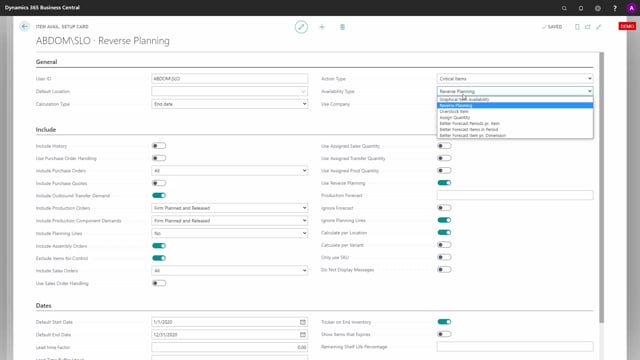


The Item Availability Setup in Business Central lets you define default field values for apps like Graphical Inventory Profile, Reverse Planning, and Assign Quantity. You set these values centrally so a planning administrator can maintain a consistent setup for all users instead of having each user configure the request page themselves.
Each app has its own line in the Item Availability Setup list. The Availability Type field tells you which app a given setup line belongs to. To maintain the setup for a specific app, select its line and open or view the card.
Some fields in the setup are not shown on the request page itself. These include Include Assembly Orders, quality control inclusion, Calculate per Location, Calculate per Variant, Only Use SKU, and Do Not Display Messages. You can only configure these from the Item Availability Setup.
If you use the Assign Quantity app, you also need to check the separate General Setup, which contains extra fields such as forecast dimension filtering and the assigning fields in the footer section.
What the Item Availability Setup is and why to use it
The Item Availability Setup holds the fields that are used on the request page. Instead of configuring everything directly on the request page, you can define the values once in the setup.
This is useful when an administrator handles the setup for other users. The configuration can be complex, so it makes sense to let a planning administrator do it once and make sure the setup is the same for everyone. It is a good idea to ensure that the default users have more or less the same setup.
General fields on the setup card
On the setup card you can define a number of general values:
- Default location: the location used by default.
- Calculation time: used in the Reverse Planning and Assign Quantity apps.
- Action type: used as the action type when you run the Reverse Planning app, not the Graphical Inventory Profile.
- Availability type: reflects the app that the setup line belongs to. For example, a line can be the Reverse Planning setup or the Graphical Inventory Profile setup.
- Use company: defines a company to look in permanently. If you work in a sales subsidiary, you might set up another company as a permanent company to view it through both the Graphical Inventory Profile and the Assign Quantity app.
Fields on the Include tab
Most of the fields on the Include tab are also shown on the Graphical Inventory Profile request page. A few fields, however, exist only in the setup:
- Include Assembly Orders: a checkmark that controls whether assembly orders are used. This is not commonly switched on and off, which is why it is set only in the setup.
- Quality control inclusion: if you have the Quality Control app, you can choose to include or exclude items that are within quality control.
- Calculate per Location: used when you run the Reverse Planning app. It corresponds to a field on the Reverse Planning request page.
- Calculate per Variant and Only Use SKU: likewise used in Reverse Planning.
- Do Not Display Messages: used in the Assign Quantity app when you do not want the pop-up on the sales line telling you that an item is not available.
Fields on the Dates tab
The Dates tab contains the date-related settings:
- Default start and end date: the default date range.
- Lead time factor fields: available if you use Reverse Planning or Assign Quantity.
- Trigger on Inventory: used only in Reverse Planning.
- Display items that expire and remaining shelf life percentage: used in all the apps that relate to this base engine.
Separate General Setup for Assign Quantity
If you use the Assign Quantity app, you should also check the General Setup, where you normally configure Assign Quantity. There is a separate card for the General Setup that looks a lot like the first card but has more fields:
- Forecast using dimension: lets you filter on a specific dimension.
- Include item on empty dimension: a checkmark that relates to Assign Quantity only.
- Assigning fields: located in the footer section. These relate to the specific functionality when you assign quantity on a sales line.
For Graphical Inventory Profile, you will normally only use the Item Availability Setup list. Click the line for Graphical Inventory Profile and open that card, or view it directly from the page.
Q&A
Why set up fields in the Item Availability Setup instead of on the request page?
So an administrator can configure the values once for all users. The setup can be complex, and doing it centrally ensures every user has the same configuration.
How do you know which app a setup line belongs to?
The Availability Type field reflects the app the setup comes from, such as Reverse Planning or Graphical Inventory Profile. Select the relevant line to maintain that app’s setup.
Which fields exist only in the setup and not on the request page?
Include Assembly Orders, the quality control inclusion field, Calculate per Location, Calculate per Variant, Only Use SKU, and Do Not Display Messages are only configured in the Item Availability Setup.
What does Do Not Display Messages do?
It is used in the Assign Quantity app to suppress the pop-up on the sales line that says an item is not available.
Where do you configure the Assign Quantity app?
In the separate General Setup. It has its own card with extra fields, including forecast dimension filtering, include item on empty dimension, and the assigning fields in the footer section.