


Customising row colours in Dynamic Report
In the standard setup of Dynamic Report, the row colours are configured with a light grey and a transparent colour on alternating lines. This makes the rows easier to tell apart from each other. If you prefer a different look, you can change this setup, remove the colour entirely, or add a new colour of your own.
Where to find the row colour settings
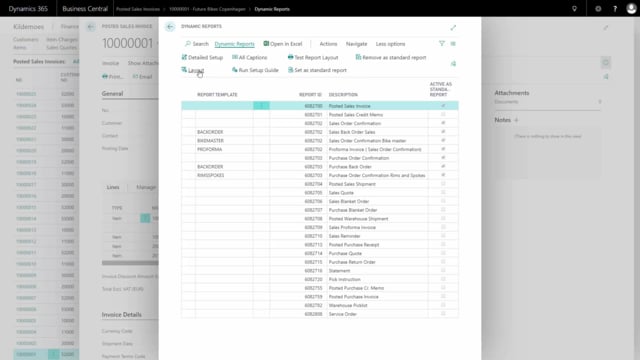
To adjust the row colours, open Dynamic Report and go into Layouts. In the layout setup, you will find Row Color 1, which in the standard setup is set to White Smoke. This is the light grey colour you see on the alternating rows.
Removing the light grey row colour
If you don’t want any colour shown on the rows, change the value from White Smoke to transparent. Once you do this, the light grey colour disappears from the lines and the rows are shown without any shading.
Adding a new row colour
The layout setup also lets you add new colours. Simply choose Add New and write the name of a colour, for instance blue. The rows will then show in blue. Blue is not a particularly practical choice for readability, but the option is there if you need to apply a specific colour to your rows.
Q&A
Why are the rows in Dynamic Report shown in light grey?
In the standard setup, the row colours alternate between a light grey (White Smoke) and a transparent colour. This makes it easier to separate the lines from each other.
How do I remove the row colour in Dynamic Report?
Open Dynamic Report, go into Layouts, find Row Color 1, and change the value from White Smoke to transparent. The light grey colour will then disappear from the rows.
Can I change the row colour to something other than grey?
Yes. In the layout setup, choose Add New and write the name of the colour you want, for example blue. The rows will then display in that colour.