
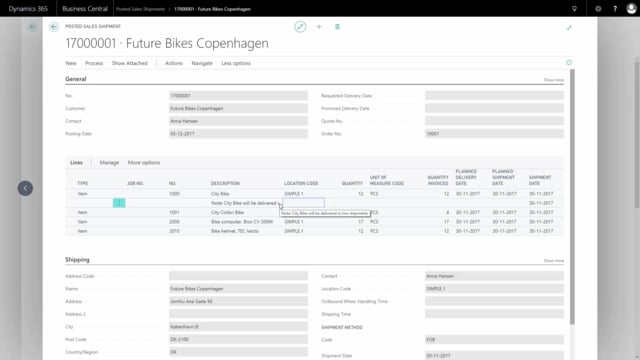


By default, Business Central only prints the description column on text lines in your documents. If you have filled out additional fields on a text line, such as a shipment date, that information does not appear on the printed document. With Dynamic Report you can change that and bring the extra columns out onto your text lines.
The trade-off is that once you enable this, the text lines are treated as normal lines. That means a quantity of zero will be printed unless you set up the column to hide zero values.
Printing extra columns on text lines in Business Central
In a standard setup, the description is the only column printed on text lines. Everything else on the line is left out, even if you have filled it in. A common example is a text line where someone has also entered a shipment date. Out of the box, that shipment date will not show up on the printed document.
Dynamic Report lets you control which columns appear on text lines, so you can include that shipment date or any other field you need.
How to set up extra information on text lines with Dynamic Report
Open Dynamic Report and find the document you want to adjust. Press Detail Setup to get into the configuration for that document.
Under columns, add the column that holds the value you want to print. In this example, a shipment date column is added. Then go to Manage and choose Edit.
Under print, select Print extra information. Here you mark Use setup for lines with blank type. This tells the report to apply your column setup to text lines as well, not just to item or G/L lines.
After this, the document shows the shipment date on the text line, exactly as you wanted.
Handling the zero quantity on text lines
Once you enable extra information on text lines, those lines are treated as normal lines. That has a side effect: the quantity column shows zero on the text line, because a text line has no quantity.
You can clean this up in the column setup. Set the column so that if the value equals zero, it does not print the value. The zero then disappears from the text line.
This is the trade-off to be aware of. The moment you add extra information to text lines, Business Central handles them as normal lines and fills in the corresponding columns. Hiding zero values is the way to keep the output looking the way you expect.
Q&A
Why is only the description printed on text lines in Business Central?
By default, the description is the only column configured to print on text lines. Any other fields you fill out on a text line, such as a shipment date, are left off the printed document unless you change the setup.
How do I print a shipment date on a text line?
Use Dynamic Report. Open Detail Setup for the document, add the shipment date column, then under Manage choose Edit. In the print settings, select Print extra information and mark “Use setup for lines with blank type”. The shipment date will then appear on the text line.
Why does a quantity of zero appear on my text lines?
When you enable extra information on text lines, they are treated as normal lines, so the quantity column shows zero. You can hide this by configuring the column to not print the value when it equals zero.
What is the trade-off of adding extra information to text lines?
Once you add extra information, text lines are handled as normal lines and will contain values in the other columns, including a zero quantity. You need to manage that, for example by hiding zero values, to keep the document looking correct.