
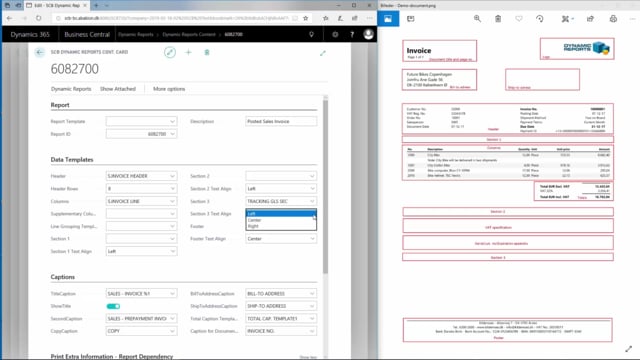


When you work with section templates in Dynamic Report, you decide where text appears on your document by choosing between section 1, section 2, and section 3. Each section corresponds to a fixed position on the document, so the section you pick determines where your text shows up.
You place a section template by marking the document, opening Detailed Setup, choosing Manage, and working under Data Templates. There you select the section for your text.
You can also set the text alignment within each section. The options are left, center, and right.
Decide where the text should appear before you place a section template
Before you place a section template on your document, decide where you want the text to sit. The section you choose controls the position:
- Section 1 places the text in the first position on the document.
- Section 2 places the text in the second position.
- Section 3 places the text in the third position.
How to place a section template in Dynamic Report
In Dynamic Report, mark the document and choose Detailed Setup. Then choose Manage, and under Data Templates you can choose to put your text in section 1, section 2, or section 3.
For example, you can place your text in section 3 if that is where you want it to appear on the document.
Set the text alignment within each section
You also have the option to choose the text alignment in the sections. You can choose from left, center, or right.
Q&A
How do you decide where text appears on a document in Dynamic Report?
You choose between section 1, section 2, and section 3 when you place a section template. Each section corresponds to a fixed position on the document, so the section you pick determines where the text shows up.
Where do you place a section template in Dynamic Report?
Mark the document and choose Detailed Setup. Then choose Manage, and under Data Templates you select the section where you want your text.
Can you control text alignment in a section template?
Yes. You can set the alignment within each section to left, center, or right.