
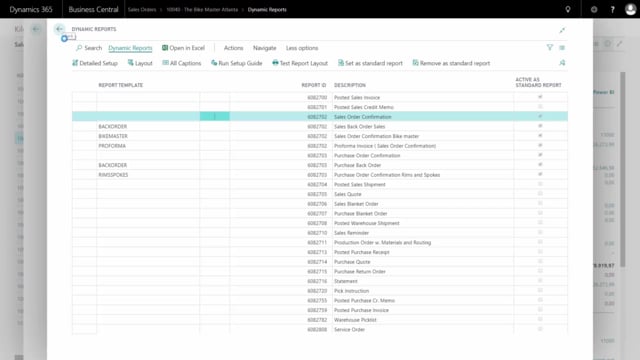


Editing the text that appears on a printed document in Dynamics 365 Business Central does not require changing the report layout in code. With Dynamic Reports, you can edit the text strings in a document section directly from the setup and see the change on the next printout.
You make the change by going into Dynamic Reports, selecting the document you want to change, choosing the report template, finding the relevant section setup, and editing the text string. When you print the document again, the updated text appears.
Changing a text section on a document in Dynamic Reports
In this example, the document setup includes a text section that prints out a fixed piece of text. The goal is to change that text so a different wording appears on the printed document.
Start by opening Dynamic Reports and marking the document you want to change. Choose the report template, and in this case, find the setup for section three. Select the section, and choose to edit the text.
From there, you edit the text string that comes out on the document. It is a direct edit of the text itself, with no need to touch the underlying report layout.
Verifying the updated text on the printout
When you are done editing, close the setup and print the confirmation again. The document now shows the updated text in the section you changed.
Q&A
How do you edit the text on a document in Dynamic Reports?
Open Dynamic Reports, mark the document you want to change, choose the report template, find the setup for the relevant section, and edit the text string. The new text appears the next time you print the document.
Do you need to change the report layout to update text on a document?
No. With Dynamic Reports, you edit the text string directly in the section setup. You do not need to change the report layout to update the text that prints on the document.
How do you confirm that the text change worked?
Print the confirmation again after editing. The document shows the updated text in the section you changed.