
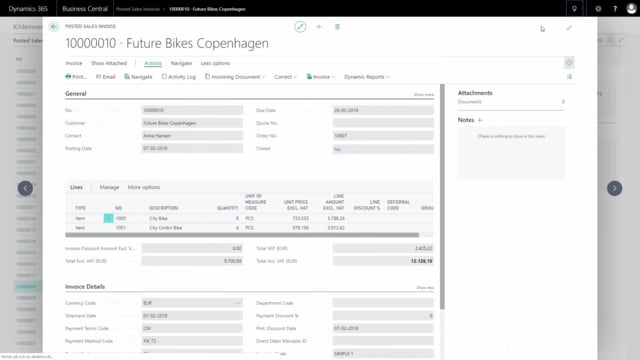


When you send out documents like invoices, some information matters more than the rest. The due date is a good example. You want it to stand out so the recipient does not miss it. With Dynamics Report you can make a field like the due date bold without touching code or rebuilding the document layout.
You change the formatting directly in the report setup. Open the document, go into the detailed setup, find the header field configuration, locate the due date field, and set the font weight to bold. Print the document again and the due date now appears in bold and is easier to read.
Highlighting fields on invoices and other documents in Dynamics Report
On documents such as invoices, there is often specific information you want to emphasise. The due date is a common case, because it tells the customer exactly when payment is expected. Instead of leaving it in the same plain formatting as everything else, you can highlight it so it catches the eye.
This is straightforward to do in Dynamics Report. You do not need a developer or a custom layout change to make it happen.
How to make the due date field bold in Dynamics Report
Start by opening Dynamics Report. Find the document you want to change. Go into the detailed setup, open the setup for the header fields, and find the due date field.
Under the font settings, choose bold for that field. Go back, print the document again, and the due date now shows in bold. It stands out clearly and is much easier to spot on the printed document.
Q&A
How do I highlight a field like the due date on an invoice?
Open Dynamics Report, find the document, go into the detailed setup, open the header field setup, and find the due date field. Set the font to bold, then print the document again. The field will now appear in bold.
Do I need to change the document layout or write code to make a field bold?
No. You make the change directly in the report setup by adjusting the font formatting for the specific field. No layout rebuild or code change is required.