
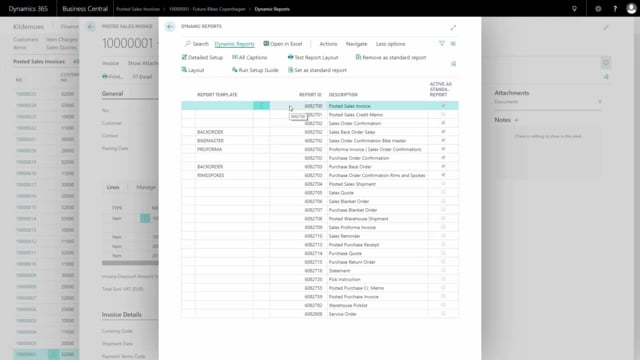


In Dynamics 365 Business Central, the Dynamic Report header has a default content height of eight fields. If you need to display more information in the header, you can increase this limit to 15 fields. The setting is found in the Dynamic Report Setup under Detail Setup, where you change the header rows value from 8 to 15. After saving and reprinting the document, the additional header content fields become available.
Default header content height in Dynamic Report
By default, the header in a Dynamic Report has a content height of eight fields. That is enough for many documents, but if you want to add more information to the header, you can extend the available space to 15 fields.
How to change the header rows in Dynamic Report Setup
You make the change in the Dynamic Report Setup. Mark the document you want to change and click Detail Setup.
In the header rows setting, change the value from 8 to 15. Save the change and print the document again. You can now see there is room for the additional header content fields.
Q&A
What is the default header content height in a Dynamic Report?
The default header content height is eight fields.
How many header fields can you have in a Dynamic Report?
You can increase the header content from the default eight fields up to 15 fields.
Where do you change the number of header rows in a Dynamic Report?
You change it in the Dynamic Report Setup. Mark the document, click Detail Setup, and change the header rows value from 8 to 15.