
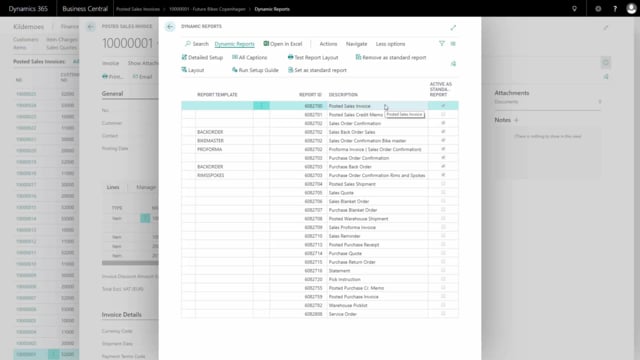


When you work with documents in Business Central, manually written text lines appear on the document by default. You can hide these lines so the document looks cleaner and contains less unnecessary information. This is handled through the Dynamics Report setup, where a single setting controls whether blank type lines are shown or hidden.
How manual text lines appear on documents by default
As a standard, manually written text lines are shown on the document. These are lines you add yourself, and they show up on the printed or previewed document along with the rest of the content. In some cases this is exactly what you want, but it can also make the document look cluttered with information that isn’t relevant to the recipient.
Hiding blank type lines in the Dynamics Report setup
To hide manual text lines, you start in Dynamics Report. Mark the document you want to adjust and open the Detail Setup.
In the Edit card for the document, mark the option Hide lines with Blank type. Once this is set, the document no longer shows the manual text lines.
Cleaner documents with less clutter
The result is a document that only shows the information you want the recipient to see. By hiding the blank type lines, you remove visual clutter without deleting the underlying text lines from the document itself.
Q&A
Are manual text lines shown on documents by default in Business Central?
Yes. As a standard, manually written text lines are shown on the document. You can hide them if you want a cleaner layout.
How do you hide manual text lines on a document?
In Dynamics Report, mark the document and open the Detail Setup. In the Edit card for the document, mark the option Hide lines with Blank type. The document then stops showing the manual text lines.
Where do you change the setting to hide text lines?
You change it in the Dynamics Report setup, specifically in the Detail Setup and the Edit card for the document you want to adjust.