
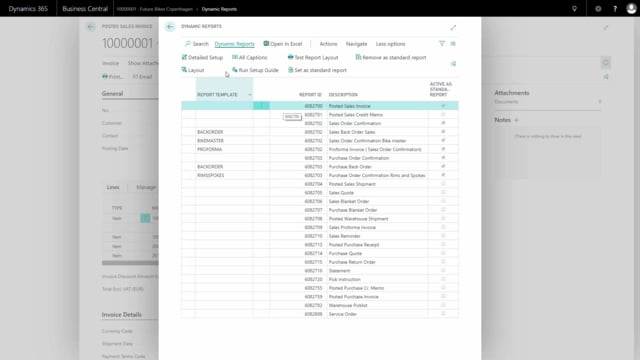


When you print a sales document in Business Central, fields like the line discount percentage will show a “0” even when there is no discount. If you would rather leave those fields blank, you can change that directly in the Dynamic Report setup without touching the report layout itself.
Hiding zero values in a Dynamic Report document
By default, a column such as the line discount percentage prints “0” on the document when the value is zero. To remove it, open the detail setup for the document in Dynamic Report.
From there, go to the column setup, find the column you want to adjust, and open the field settings. Mark the option Blank if zero for that column.
When you print the document again, the zeros are gone. Any field that previously showed “0” now prints as blank instead.
Why this is useful
This is a small but practical adjustment that makes your documents cleaner and easier to read. Instead of customers seeing a string of zeros for discounts and other values that do not apply, those fields simply stay empty. And because the change lives in the Dynamic Report setup, you do not need to modify the underlying report design to get there.
Q&A
How do I stop Business Central from printing “0” in the line discount field?
Open the detail setup for the document in Dynamic Report, go to the column setup, find the line discount column, open the field settings, and mark “Blank if zero”. When you print the document again, the zero will appear blank.
Do I need to change the report layout to hide zero values?
No. You can hide zero values entirely through the Dynamic Report setup using the “Blank if zero” option on the relevant column, without modifying the report design.
Does the “Blank if zero” setting apply to other columns besides line discount?
Yes. You can apply the “Blank if zero” option to any column in the column setup, so any field with a zero value will print as blank instead.