


Looking at this transcription, I’ll analyze it for context. This appears to be about document footer template setup in Microsoft Dynamics 365 Business Central. The content is quite brief, focused on creating footer sections.
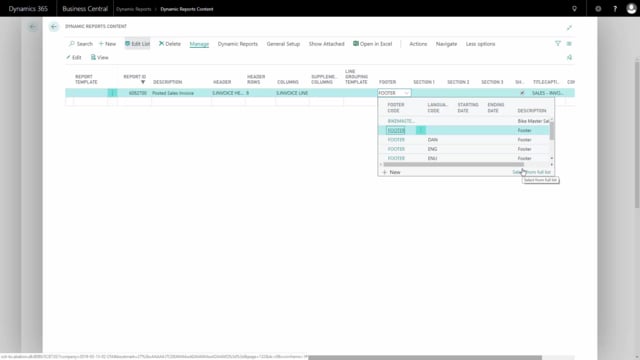
In Microsoft Dynamics 365 Business Central, you can add footer templates to your documents through the detail setup. You have three footer sections to work with: footer section 1, 2 and 3. You create a new footer template by looking it up from the full list, and you can save time by copying an existing footer section using the “Copy to New” action.
Adding footer sections in the detail setup
You add new footer template sections directly in the detail setup. There are three placements available: footer section 1, footer section 2 and footer section 3. This gives you flexibility in how you structure the footer content on your documents.
To create a new footer template, look up the field and select from the full list. From here you can create a new footer section from scratch.
Copying an existing footer section
You don’t have to build every footer from the ground up. If you already have a footer or section that works well, you can copy it. Go to Actions and choose Copy to New. This creates a new footer based on the existing one, which is faster than starting over when you only need minor adjustments.
Using the footer template on your documents
Once the footer template has been created, you can apply it to your document setup. The footer is then ready to use across the documents where you need it.
Q&A
How many footer sections can you add in Business Central?
You can add three footer sections: footer section 1, footer section 2 and footer section 3. You add them in the detail setup.
How do you create a new footer template?
Look up the footer field and select from the full list. From there you can create a new footer template.
Can you copy an existing footer instead of creating one from scratch?
Yes. Go to Actions and choose Copy to New. This creates a new footer based on an existing footer or section.
How do you apply a footer template to a document?
After the footer template has been created, you use it in your document setup so it appears on the relevant documents.