
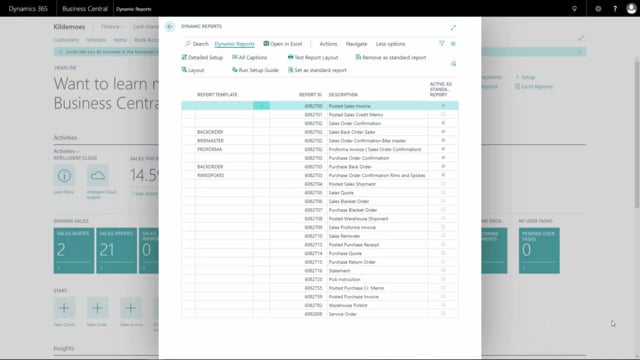


When you print a sales invoice from Microsoft Dynamics 365 Business Central, the heading at the top of the document comes from a setting you control yourself. If you want to change that heading, you do it in the document setup, not by editing the report layout.
Where to change the document heading on a sales invoice
The document heading is controlled through the detailed setup for the document. When you open the setup and edit it, you can see that the title caption is set to “Sales Invoice” by default.
You are not locked to that text. You can choose another caption from the caption list. For example, you can create your own caption and assign it instead. Once you select a different caption, the document uses that text as the heading when you print it out.
Why this matters
This gives you a straightforward way to adjust the wording on your printed documents without touching the underlying report. If your company uses different terminology, or you need a heading that fits a specific document type, you handle it directly in the setup.
Q&A
Where do you change the heading on a sales invoice in Business Central?
You change it in the detailed document setup. Open the setup, edit it, and select a different title caption from the caption list.
What is the default heading on a sales invoice document?
The default title caption is “Sales Invoice”.
Can you use your own custom text as the document heading?
Yes. You can create your own caption and select it from the caption list. The document then uses that caption when you print it.