
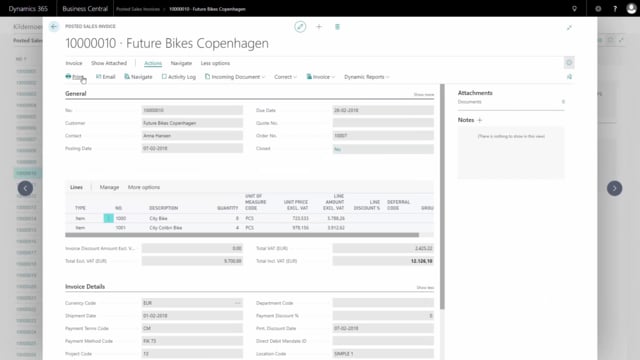


When you work with documents in Business Central, the column headings often pull their captions directly from the field names. One common example is the unit of measure field, where the heading shows “Unit of Measure Code” even though a shorter label like “Unit” would read better on the printed document.
Here is how to change that caption in a dynamic report.
Changing a column caption in the dynamic report column setup
Open the dynamic report and go to the column setup. Find the column that holds the unit of measure value.
Click on Fields for that column. In the caption list, look for a caption that simply says “Unit”.
If the caption you want is already in the list, select it. If it is not there, add it manually for your unit of measure field. Once applied, the column heading shows “Unit” instead of “Unit of Measure Code”, and the document becomes easier to read.
Q&A
How do I change the unit of measure heading on a Business Central document to just say “Unit”?
Open the dynamic report and go to the column setup. Find the column with the unit of measure, click on Fields, and select or add a caption that says “Unit”. The heading will then display “Unit” instead of “Unit of Measure Code”.
What do I do if the caption I want is not available in the list?
If the caption you want is not already in the list, add it manually for the unit of measure field in the column setup. After that, the document heading will show your preferred label.