


When you add an extra field to a column in a document layout, you sometimes end up with a duplicate caption in the column header. With Dynamic Report in Dynamics 365 Business Central, you can hide that additional caption while keeping the field itself visible in the column.
To do this, open Detail Setup for the document, find the column under Dynamic Report Columns, open Fields, and check the option “Hide additional caption in column header.” When you print the document again, the extra heading disappears from the column header.
Adding a second field to a document column
In this setup, we added a second piece of information to the Description column. We also added a caption in front of that information, stating that the number is an order number.
Because the caption already appears in front of the value, we don’t need the same heading repeated in the column header. Dynamic Report lets you hide that duplicate heading.
Hiding the additional caption in the column header
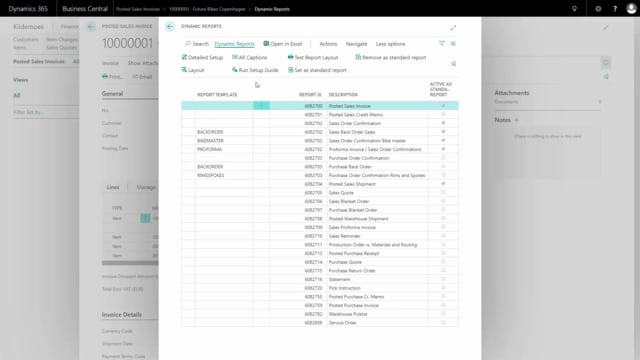
Start in Dynamic Report. Mark the document and press Detail Setup.
Under Dynamic Report Columns, identify the column you want to adjust and press Fields.
Check the option “Hide additional caption in column header,” then print the document again.
The additional heading for the order number is no longer visible in the column header, while the order number itself still shows in the column.
Q&A
How do I remove a duplicate caption from a column header in Dynamic Report?
Open Detail Setup for the document, go to Dynamic Report Columns, select the column, press Fields, and check “Hide additional caption in column header.” Print the document again and the duplicate heading is gone.
Does hiding the additional caption remove the field from the column?
No. The field and its value stay visible in the column. Only the duplicate caption in the column header is hidden.
Why would I have a duplicate caption in the first place?
It happens when you add a second piece of information to a column and also place a caption in front of that information. The caption in front already identifies the value, so the same heading in the column header becomes redundant.