
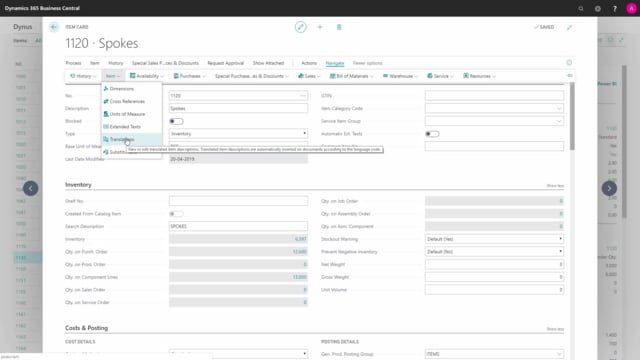


Business Central includes more than 100 different action buttons in the action ribbon, and many of them are specific to certain roles such as sales people or purchasers. This article covers the action buttons on the item card that work across departments. You attach files and PDFs directly to an item, define metadata with attributes, and set up cross references so the same item can be identified by different numbers for vendors, customers, and barcodes. You define item unit of measure conversions, extended texts, translations, and substitutions. You add comments as searchable text lines and notes as free text saved in a blob field. You set up links to URLs, run approval workflows, and create item variants. Abakion recommends using separate item numbers instead of item variants in most cases, because variants must be stated on every document where the item is handled. Item templates let you prefill fields when creating new items.
Attachments and attributes on the item card
From the item actions, you find both attachments and attributes. Attachments are files you can link to the item. For example, you might attach a PDF file with a blanket agreement from a vendor. You can attach as many files as you want, preview them, and open a file by clicking it.
Attributes let you define metadata on the item. You can add as many as you want. For instance, you can add “brand” as an attribute and define value options for it, so you can select different values across items. You can also define attributes as decimal fields, such as a measurement in millimeters. This gives you a flexible way to describe your items.
Cross references for vendors, customers, and barcodes
The cross reference window is the table where you set up how an item is identified outside your own item card. On the vendor side, if you buy the item from vendor number 30,000, you can store his item number when you buy it in cartons, or another vendor’s item number when you buy it in pieces. If you sell the item to a customer, it can have a cross reference number. You can also store barcodes you use yourself on cartons or on pieces. In this table you set up all the different ways of identifying your items.
Item unit of measure
In the item unit of measure table, you set up the different units the item can be handled in. The base unit of measure is shown in bold and always has a quantity of one. In this example, one carton holds 25 pieces. You can set up as many units of measure as you need for a specific item, and they can be changed and handled on all your documents.
Extended texts and translations
Extended text lets you add text you want to use on the item for your order documents. You can set up whether the text applies to the purchase side or the sales side, and you can define more than one extended text per item.
With translations you define what the item is called in different languages. If you sell to a customer with a language code, the system finds the matching translation. If there is no translation, it uses the default description from the item card.
Item substitutions
In the substitution table you determine which other items can substitute the current item. This is used on the sales and purchase sides. On a sales order, if you do not have enough of the item the customer asks for, you can look up substitutions directly on the item line to see if another item can replace it.
Comments, notes, and links
On the availability area you can enter comments on the item. For example, you can note that if you buy more than 100,000, you should buy from a specific vendor, or that the item should be bought in millimeters rather than inches. Comments are stored as text lines in the database, so you can search for them and use them as text options.
Under Show Attached you also find notes. Notes are saved in the system as a blob field. This is more like a free text area where you can write whatever you want and save larger amounts of text in free prose.
Show Attached also includes a link functionality where you set up URLs. If you buy an item from a vendor, you can add the vendor’s home page or any other links in your link setup.
Approval workflows on items
There is a lot of functionality for approval on the item card. From the Request Approval tab you can send approvals, cancel approvals, and go into flows. Flows are not part of Business Central itself, but Microsoft Flow functionality where you can define other kinds of approvals. Under Actions and Workflow you find more approval functionality. This is used to have an item approved when you create new items or change existing ones, so someone can check and approve the change.
Item variants and when to avoid them
Under Actions and Items you can define item variants. An item variant determines whether an item is understood as different versions, for example painted black, chrome, or white. In most cases we recommend not using item variants and using separate item numbers instead.
In some industries you have to define item variants for the system to work. For clothing with sizes such as large and small, many customers want one item number for a specific shirt and then handle the sizes as variants. Item variants are handled at inventory level, which means the inventory people must state both the item number and the item variant number on all documents and in all places where the item is handled. Because of this, you have to be careful about using item variants.
Item templates for faster setup
Under Actions and Functions you find templates, including Apply Template and Save as Template. Item templates prefill many or some of the fields on the item. If you know an item uses a specific template, such as a shirt, the template fills in a lot of those fields automatically. This gives you an easier way of creating new items.
Q&A
What is the difference between comments and notes on an item in Business Central?
Comments are saved as text lines in the database, which makes them searchable and usable as text options. Notes are saved as a blob field and work as a free text area where you can write larger amounts of free prose.
Should you use item variants or separate item numbers in Business Central?
In most cases, use separate item numbers. Item variants are handled at inventory level, so you must state both the item number and the variant number on every document and in every place where the item is handled. In some industries, such as clothing with sizes, you need item variants for the system to work.
What does the cross reference window do on the item card?
It lets you set up how an item is identified outside your own item card. You can store vendor item numbers, customer cross reference numbers, and barcodes for cartons or pieces, so the same item can be recognised by different numbers.
How do translations work on items in Business Central?
You define what the item is called in different languages. When you sell to a customer with a language code, the system uses the matching translation. If no translation exists, it falls back to the default description on the item card.
What do item templates do?
Item templates prefill many or some of the fields when you create a new item. If you select a template, such as one for a shirt, the relevant fields are filled in automatically, which makes creating new items faster.