
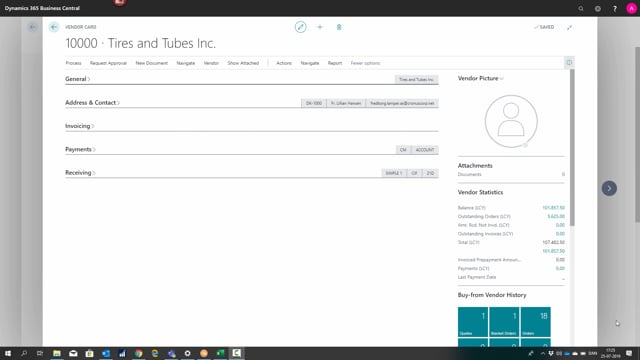


The vendor card in Microsoft Dynamics 365 Business Central is organised into five FastTabs: General, Address & Contact, Invoicing, Payments, and Receiving. Each tab groups related information about the vendor.
The General tab holds the vendor number, vendor name, and the vendor’s balances.
The Address & Contact tab holds the name, address, postcode, and any contacts.
The Invoicing tab controls how the vendor is invoiced through the posting setup and stores VAT registration numbers.
The Payments tab defines how you pay the vendor.
The Receiving tab defines where you receive items delivered by the vendor.
The General tab
The General tab is where you find the basic identification of the vendor. It contains the vendor number and the vendor name, and it shows the balances on the vendor so you can see where things stand financially.
The Address & Contact tab
This tab covers the contact details. Here you have the name, address, and postcode, along with any contacts registered for the vendor.
The Invoicing tab
The Invoicing tab shows how the vendor should be invoiced through the posting setup. This is also where you find the VAT registration numbers if the vendor has any.
The Payments tab
The Payments tab handles the question of how you are going to pay the vendor.
The Receiving tab
The Receiving tab is relevant when you get items from the vendor. It defines where you are going to receive those items.
Q&A
What information is on the General tab of the vendor card?
The General tab contains the vendor number, the vendor name, and the vendor’s balances.
Where do you find the VAT registration number on a vendor card?
The VAT registration number is on the Invoicing tab, which also shows how the vendor should be invoiced through the posting setup.
What does the Receiving tab control?
The Receiving tab defines where you receive items when you get them from the vendor.
What are the tabs on the vendor card in Business Central?
The vendor card has five FastTabs: General, Address & Contact, Invoicing, Payments, and Receiving.