
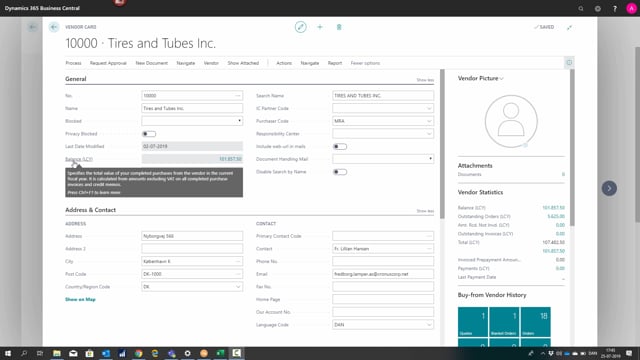


The vendor card in Microsoft Dynamics 365 Business Central holds a range of fields that the purchase department uses every day. Understanding what each field does helps you control how you interact with a vendor, keep track of balances, and make sure invoicing and payments run correctly.
The Blocked field controls whether you can make purchases from a vendor. You can set it to Payment, All, or leave it open. Privacy Blocked relates to GDPR and limits daily access to data on the vendor.
The Balance (LCY) field shows the total value of completed purchases with the vendor in the fiscal year. Click the number to drill into all transactions behind it.
The Balance Due field shows the total of all unpaid purchase invoices, including any credit memos.
The Search Name lets you set an alternate name for the vendor. If you leave it blank, it automatically uses the name from the Name field.
The VAT Registration No. field has an underlying validation table that checks the format against the vendor’s country.
The Pay-to Vendor No. lets you direct payments to an alternate vendor in the vendor table, which is useful when a vendor has several departments.
The Prepayment % applies a prepayment percentage to all orders from the vendor, regardless of what you set on the individual lines.
General fields that control vendor interaction
The Blocked field tells you how you can interact with the vendor and whether you can make any purchases from them. You can block payment only, block all activity, or leave the vendor open for normal use.
Privacy Blocked is used in connection with GDPR. When you set it, you limit access to data on the vendor on a daily basis.
The Last Date Modified field tells you when the vendor record was last changed.
Vendor balances and transactions
The Balance (LCY) field shows the total value of the completed purchases with the vendor in the fiscal year, stated in local currency. If you click the number, you drill straight into all the transactions that make up the balance.
The Balance Due field shows the total of all unpaid purchase invoices, including any credit memos that apply.
Contact and identification fields
The Search Name is an alternate name for the vendor. If you do not like the value in the Name field, you can enter something else here. If you leave the Search Name blank, it automatically takes the value from the Name field.
The Purchaser Code lets you assign a purchaser to the vendor.
The Primary Contact Code is for when you have a primary contact and you want to look into an underlying contact table. Alternatively, you can enter a contact name directly on the vendor card, which does not look into the underlying table.
The Phone No., Email, and Home Page fields are self-explanatory. The Our Account No. field specifies your own account number at the vendor, where you are registered as a customer.
Invoicing fields on the vendor card
The VAT Registration No. field has an underlying validation table that ensures you enter the VAT number in the correct format for the country where the vendor is located.
The GLN specifies the connection for electronic documents with your vendor.
The Pay-to Vendor No. is for when you have an alternate vendor you want to pay to. This is relevant when your vendor has several departments, for example. The field looks into the vendor table, so you select the alternate vendor directly from there.
Prepayment and partner type
The Prepayment % specifies a prepayment percentage that applies to all orders you place with the vendor, regardless of what you set on the individual lines. If you always take a full percentage on all orders, this is where you control it, even if you have special deals on specific lines.
Finally, the Partner Type specifies whether your vendor is a person or a company.
Q&A
What does the Blocked field on the vendor card do?
It controls how you can interact with the vendor and whether you can make purchases from them. You can block payment only, block all activity, or leave the vendor open.
What is the difference between Balance (LCY) and Balance Due on a vendor?
Balance (LCY) shows the total value of completed purchases with the vendor in the fiscal year. Balance Due shows the total of all unpaid purchase invoices, including any credit memos.
What happens if I leave the Search Name field blank?
It automatically takes the value from the Name field.
Why does the VAT Registration No. field validate my input?
It has an underlying validation table that ensures you enter the VAT number in the correct format for the country where the vendor is located.
When should I use the Pay-to Vendor No. field?
Use it when you have an alternate vendor you want to pay to, for example when a vendor has several departments. The field looks into the vendor table so you can select the alternate vendor directly.
How does the Prepayment % field work?
It applies a prepayment percentage to all orders from the vendor, regardless of what you set on the individual lines.
What does the Privacy Blocked field relate to?
It relates to GDPR and limits daily access to data on the vendor.