


Microsoft Dynamics 365 Business Central gives you two practical ways to correct your inventory when the numbers in your system no longer match reality. You can make a direct manual adjustment on a single item using the item journal, or you can run a full physical inventory count using the physical inventory journal.
To make a quick negative or positive adjustment, open the item journal, choose the entry type (negative adjustment, positive adjustment, purchase, sales, and so on), select the item number, and enter the quantity. Posting the journal updates the item ledger entries immediately.
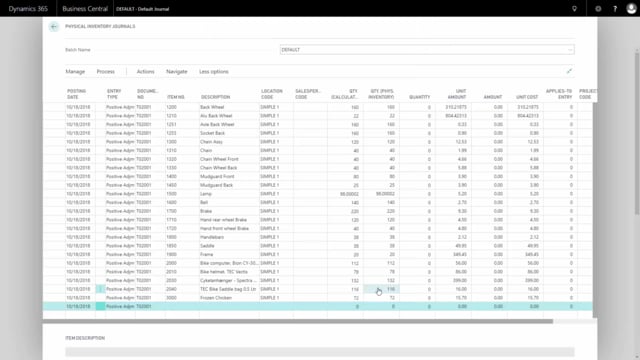
To reconcile your stock against a physical count, open the physical inventory journal and use Process to calculate the expected inventory. Enter the actual counted quantity in the Quantity Physically Counted column. Business Central automatically creates the adjustment for any line where the counted number differs from the expected number, and posting only affects the lines you changed.
Adjusting inventory directly on a single item in the item journal
Sometimes you discover that some items are no longer physically in stock, even though your ERP still shows them as available. In that case, you want to make a negative adjustment directly on the specific item for a specific quantity.
In Business Central, you do this from the item journal. Open the journal and choose the entry type you need. The options include negative adjustment, positive adjustment, purchase, sales, and more, so you can change the inventory manually directly in the journal.
Select your item number and enter the quantity you want to adjust. If you need to remove three pieces from inventory for some reason, you enter that as a negative adjustment. If you want the adjustment to apply to a specific entry, scroll down and point out the actual entry you want to adjust against.
When you post the journal, the item ledger entries are reduced by the three pieces you specified.
Running a physical inventory count in the physical inventory journal
The second scenario is a full inventory count. Here you want to print the list of everything Business Central believes is in stock, take that list out into the warehouse, count the actual items, and then post any differences.
Open the physical inventory journal and use Process to calculate the expected inventory. To keep the number of lines manageable, you can add filters. For example, you can calculate all items with a number higher than a certain value and limit the calculation to a specific location, such as location Sample 1.
The calculation shows what you are supposed to have in stock. If Business Central expects 22 of item 1210, but you count only 20, you enter 20 in the Quantity Physically Counted column. The line then turns into a negative adjustment of 2.
You enter the counted quantity for everything that differs from what Business Central has on record, and then post the journal. Only the lines where you changed something are posted. In this example, posting removes the line and creates a negative adjustment of those two pieces.
Choosing between the two methods
Use the item journal when you already know exactly which item and quantity needs correcting. Use the physical inventory journal when you want to verify your full stock against a count and let Business Central calculate the differences for you. Both methods end with a posting that updates your item ledger entries so your inventory matches reality.
Q&A
How do I make a negative adjustment on a single item in Business Central?
Open the item journal, choose the negative adjustment entry type, select the item number, and enter the quantity you want to remove. If needed, point out the specific entry the adjustment should apply to, then post the journal. The item ledger entries are reduced accordingly.
How do I run a physical inventory count in Business Central?
Open the physical inventory journal and use Process to calculate the expected inventory. Add filters on item number or location to limit the lines if needed. Enter the actual counted quantity in the Quantity Physically Counted column for each item, then post the journal.
What happens if my counted quantity differs from the expected inventory?
Business Central automatically turns the line into an adjustment. For example, if the expected quantity is 22 and you count 20, the line becomes a negative adjustment of 2. Only the lines where the counted quantity differs are posted.
Can I limit how many lines appear when calculating expected inventory?
Yes. When you calculate the expected inventory in the physical inventory journal, you can apply filters such as item number range or a specific location to keep the number of lines manageable.