
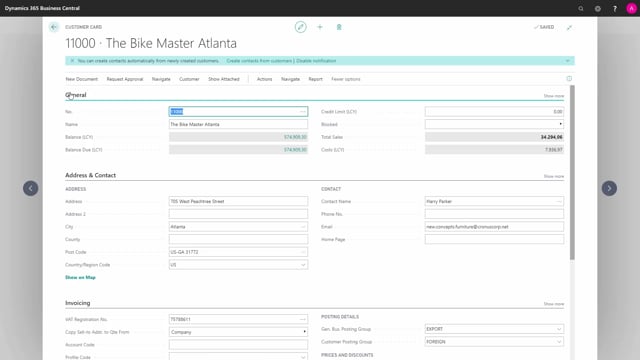


If you have duplicate customers in Business Central, you can merge them into one record using the built-in merge function. You find it on the customer card under Actions, Functions, and Merge With.
Start the merge from the customer card you want to keep, because that record becomes the surviving record. When you merge, the duplicate record is deleted and all related records are reassigned to the record you kept.
For each field that differs between the two customers, you can choose to keep the original value or override it with the value from the duplicate. This lets you keep the correct contact person, address, and other details.
The merge cannot be undone. Check every field before you confirm.
Why duplicate customers appear in Business Central
Duplicate customers are easy to create without noticing. A common example: a customer calls and you create a new customer card because the contact person has changed. Instead of updating the contact on the existing customer number, a second card gets made for the same company.
The result is two records that look almost identical. In this example, both are named Bike Master Atlanta, with the only real difference being the contact person.
How to merge two customers
The process is straightforward:
- Open the customer card you want to keep. This should be the record that contains most of the fields you want to retain, since it becomes the surviving record.
- Go to Actions, then Functions, then Merge With.
- Select the customer you want to merge into this record.
Business Central then shows you a comparison between the current customer and the customer you are merging with. You can scroll through the customer card and see every field that is either different or only filled in on one of the records.
Choosing which field values to keep
For each differing field, you decide which value survives. In the example, the duplicate was created because the contact person changed. The original card still had the old contact, so you select Override on the contact field to bring the new contact name across.
Work through all the fields that are different or have been added. When you are satisfied, click Merge.
What happens when you confirm the merge
When you confirm, Business Central does three things:
- The two customers are merged into the record you started from.
- The duplicate record is deleted.
- All related records are reassigned to the surviving record.
After the merge, the duplicate customer number is gone, and the values you chose to keep, such as the updated contact name, appear on the original customer card.
The merge cannot be undone
This is the one thing to be careful about. Once you merge, there is no undo. Review every field carefully before you confirm, so you do not lose data you wanted to keep.
Q&A
Where do I find the merge function for customers in Business Central?
Open the customer card you want to keep and go to Actions, then Functions, then Merge With. From there you select the customer you want to merge into the current record.
Which customer card should I start the merge from?
Start from the customer card that contains most of the fields you want to keep. That record becomes the surviving record. The other record is deleted, and its related records are reassigned to the one you kept.
Can I choose which field values to keep when merging?
Yes. Business Central shows a comparison of every field that differs between the two records. For each field you can keep the original value or use Override to take the value from the duplicate.
Can I undo a customer merge in Business Central?
No. The merge cannot be undone. Review all fields before you confirm.
What happens to related records when I merge two customers?
The duplicate record is deleted and all related records are reassigned to the surviving customer record.