
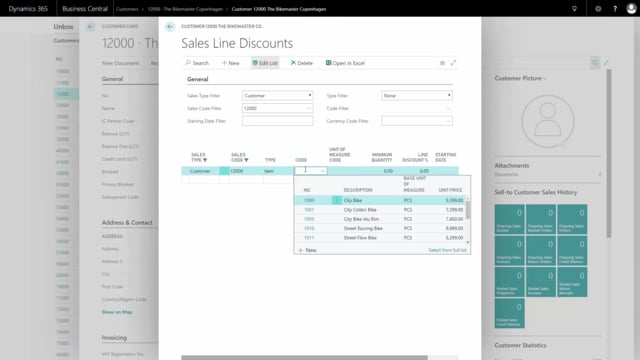


In Microsoft Dynamics 365 Business Central you can set up three different types of discounts on a customer: item-specific prices (special prices), line discounts, and invoice discounts. You set up special prices and line discounts by entering a customer and opening prices and discounts from the Navigate tab. You set up invoice discounts based on the total order amount.
Special prices let you define a unique price for a specific item when a customer buys a minimum quantity. Line discounts give a percentage discount on an item once the customer reaches a quantity threshold. Invoice discounts give a percentage discount when the order total reaches a defined amount.
You can set start and end dates on prices and discounts to control which intervals they apply in. All discounts take effect automatically when you create sales orders. You can also view the same data from the item list, where prices and discounts are shown per item instead of per customer.
Three types of customer discounts in Business Central
Business Central lets you work with discounts in three ways on the same customer: special prices on items, line discounts, and invoice discounts. You start from the customer list, open the specific customer you want to give discounts to, and use the Navigate tab to find prices and discounts.
Setting up special prices on items
The first option is to set special prices, which are effectively discounts for specific items. You enter the item number, a minimum quantity, and a unique price for that item. For example, you can specify that when this customer buys at least 10 pieces of the item, they pay a particular price.
You can also set a starting and ending date on the special price. That way you control which date intervals the price applies in.
Setting up line discounts
The second option is line discounts. Here you define a percentage discount that applies when the customer buys a certain quantity of an item. For example, you can specify that when this customer buys at least 100 of an item, they get a 5% discount.
Line discounts also support a starting date. You can use a line discount instead of a specific price for the item, depending on how you want to handle the discount.
It is possible to set up both a special price and a line discount on the same item for the same customer at the same time. In practice you would normally choose one approach rather than combining both.
Setting up invoice discounts
The third option is invoice discounts. This applies a discount based on the total order amount rather than a specific item. For example, you can specify that if the customer buys for at least 100,000, they get a 3% discount.
How discounts apply and where to view them
Once you have set everything up, the discounts take effect when you create sales orders. The relevant prices and discounts are applied automatically.
You can also view the same data from the item list. The view is the same, but it shows information per item instead of per customer. Open the item number and go into the special prices to see your sales prices. There you can see the line you just defined as well as lines for other customers, including those who buy the same item at a higher price.
From the item, you can also go into prices and set special discounts, and check whether other customers have discounts on that item.
Q&A
What are the three types of customer discounts in Business Central?
You can set up special prices on specific items, line discounts that give a percentage off when a quantity threshold is reached, and invoice discounts that give a percentage off based on the total order amount.
How do I set up a special price for a customer?
Open the customer from the customer list, go to prices and discounts via the Navigate tab, and enter the item number, a minimum quantity, and a unique price. You can also add a starting and ending date.
How does a line discount differ from a special price?
A line discount gives a percentage discount when the customer buys a certain quantity of an item, while a special price sets a fixed unique price for the item at a minimum quantity. You can use either approach, and both support date controls.
How does an invoice discount work?
An invoice discount applies to the total order amount rather than a single item. For example, if the customer buys for at least 100,000, you can give them a 3% discount.
When do the discounts take effect?
The discounts apply automatically when you create sales orders for the customer.
Can I view discounts per item instead of per customer?
Yes. Open the item list, enter the item number, and go into special prices. You see the same data but organized per item, including lines for different customers.