


You can create a sales invoice in Business Central in two different ways. You can create a standalone invoice directly, where shipment and invoicing always happen together. Or you can invoice from a sales order where you have already posted the shipment.
When you create a standalone sales invoice, the quantity to ship and quantity to invoice always follow each other. You will not see separate columns for them. When you post the invoice, it becomes a posted invoice that you can open, print as a PDF, and send to the customer.
When you invoice from a sales order with an already posted shipment, Business Central lets you invoice only the quantity you have shipped. You cannot post an invoice for more than you have shipped. If you post the order directly, it suggests shipping the remaining quantity and invoicing the already shipped quantity, so you need to adjust the quantities if you only want to invoice what is shipped.
Creating a standalone sales invoice in Business Central
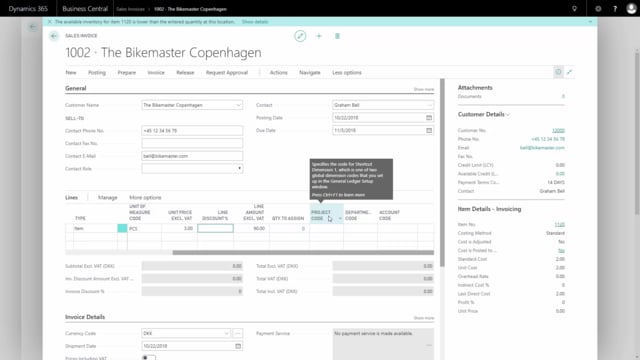
The simplest way to make a sales invoice is to create it directly. From the main menu, go to your sales invoices and create a new one. This is useful when a customer wants to buy something extra, for example a few additional spokes.
Enter the customer, for instance Bike Master Copenhagen. On the lines, you can enter the same types as on a sales order: item, G/L account, resource, and so on. In this example you sell 30 spokes to the customer.
The item does not always have a sales price set up automatically on the item card. If that is the case, the price field stays empty, but you can still see useful information in the fact box. Here you can see the standard cost, which in this example is 2 DKK, and set the sales price accordingly.
When you scroll right on the invoice lines, you will notice there are no separate columns for quantity to ship and quantity to invoice. On a sales invoice these always follow each other, so there is nothing to split.
From here you can print the invoice to your screen, or post it and send it. Normally you would use post and send, which posts the invoice and sends it to the customer automatically. If you only post it, the invoice turns into a posted invoice. You can open it to see how it looks, print it, save it as a PDF, and send it to the customer afterwards.
Invoicing from a sales order with a posted shipment
The second scenario is when you already have a sales order for the customer and have posted shipments on it. In this example, the order includes a bike along with training and transportation, and some quantities have already been shipped.
When you scroll right on the sales order, you can see what has already been shipped. In this case, 18, 2, and 1 are shipped, and 7 still remain to be shipped. If you post the order directly now, Business Central suggests shipping the remaining 7 and invoicing the already shipped quantity at the same time.
If you only want to invoice the quantity you have already shipped, you control this in the posting. You cannot post an invoice for more than you have shipped. Choose post and select to post only the invoicing, since the shipment is already posted. The quantity invoiced then updates to reflect what you posted.
The result is an invoice you can find under your posted sales invoices and send to the customer. You could also have used post and send to handle both steps in one go.
Finding your posted sales invoices
Go to your posted sales invoices to find the documents you created and posted. You can filter on the customer to quickly locate them. In this example, you see the two invoices that were just created and posted, including the one covering the shipped quantities of 18, 2, and 1. On this specific sales order, you only see the actual invoiced quantity.
Q&A
What are the two ways to create a sales invoice in Business Central?
You can create a standalone sales invoice directly, where shipment and invoicing happen together. Or you can invoice from a sales order where the shipment has already been posted.
Why are there no quantity to ship and quantity to invoice columns on a sales invoice?
On a sales invoice, shipment and invoicing always follow each other, so there is no need to split the quantities into separate columns. This split only applies to sales orders.
Can I invoice more than I have shipped on a sales order?
No. Business Central does not allow you to post an invoice for more than you have shipped. You can invoice only the quantity that is already shipped.
What happens if I post a sales order directly when only part of it is shipped?
Business Central suggests shipping the remaining quantity and invoicing the already shipped quantity in the same posting. If you only want to invoice what is shipped, you need to adjust the posting to post the invoicing only.
What does post and send do compared to post?
Post creates the posted invoice without sending it. Post and send posts the invoice and sends it to the customer automatically in one step.
Where do I find an invoice after posting it?
You find it under your posted sales invoices. You can filter on the customer to locate it, then open, print, save as PDF, or send it.
So, it is two different ways of making a sales invoice, so, let’s start with the simple one.
From the main menu, I will go to my sales invoice, in this case, I might have a customer who wants to buy some extra spokes, so, I create a new sales invoice for my customer, and this is the Bike Master Copenhagen, and I can enter either item, G/L account, resource, etc.
like when I created the sales order, and in this case, I would like to buy, and also sell, a spoke, maybe 30 pieces for this customer, and it doesn’t have a sales price automatically, because it’s not set up on the item card, but I can see here on my fact box, that the standard cost is 2 DKK.
I might say to the customer he has to buy three depending on my sales, and when I scroll right, I can see there’s no columns for quantity to ship and quantity to invoice, because when it’s a sales invoice those will always follow each other, so, now I can print it to my screen or just post it and send it, so, we’ll go to post, normally I would post and send, and then send the invoice automatically, in this case, I will just post it and when I post the invoice it turns into a posted invoice, and I can open it and see how it looks, and I could send it from here, if I didn’t send it before.
I can print it, and then save it as pdf, and send it to the customer.
So, this is one scenario.
I created and posted an invoice.
The other scenarios is a sales order, and I know, that I have a sales order already for this customer.
I have shipped some quantities of bike and also some training and transportation and if I scroll right on my sales order, I can see that I already shipped 18 and 2 and 1, and I still miss to ship the 7, so if I post this directly now, it will suggest to ship the remaining quantity and invoice the already shipped quantity.
What I want to do now is actually to post the quantity I’ve shipped, It’s not allowed to post more than I have shipped, and then I can proceed, post, select post, and in this case, I will only post the invoicing, because I already posted the shipment, and now my quantity invoiced displays what I’ve posted now.
So, there’s an invoice that I can go and find in my posted sales invoice, and send it.
I could also have selected post and sent, so, if I go to my posted sales invoice, and I might select a filter on this customer, I can see my two invoices, that I just created and posted, the last one on the 18 and 2 and 1, so, on this specific sales order, I only see the actual invoiced quantity.