


Purchase quotes in Microsoft Dynamics 365 Business Central let you request pricing and terms from a vendor before you commit to an actual purchase order. You create a purchase quote either from an action on your role center or by searching for “purchase quotes” in the system.
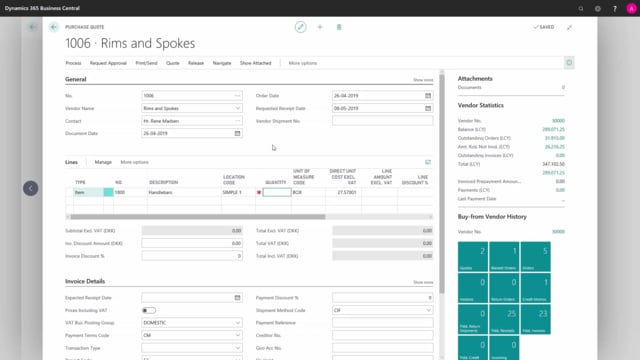
To create a purchase quote, you fill in the vendor, the requested receipt date, and the lines with item type, item number, location code, and quantity. Pay attention to the unit of measure, because an item set up to be purchased in boxes will show the quantity in boxes, not pieces.
Once the fields are filled in, you can print the purchase quote and send it to your vendor.
Where to find the create purchase quote action
Depending on which role center you are set up for, you may have a direct action to create purchase quotes. In the Purchase Agent role center, you find “Create Purchase Quote” under Actions.
If your role center does not have this action, you can always search for “purchase quotes” in the system. That takes you to the list of purchase quotes, where you create a new one by pressing New.
Filling in the purchase quote header
When you create a new purchase quote, the number field works in one of two ways. If your purchase quotes are set up to use an automatic number series, you simply press Enter and the system assigns the number. If not, you type in a purchase quote number manually.
Next, you set the vendor by typing the vendor name or selecting it from the list. You can also specify when you want to receive the items by filling in the requested receipt date.
Adding lines to the purchase quote
On the lines, you start by selecting the type, in this case Item. Then you type the item number or select it from the list.
In the location code field, you select where you want to receive the items. In the quantity field, you define how many you want to purchase.
The unit of measure matters here. If the item has been set up to be purchased in boxes rather than pieces, the quantity refers to boxes. So entering a quantity of five means five boxes, not five individual pieces. If you need to buy more items, you add more lines.
Printing and sending the purchase quote
When you have filled in and reviewed the fields on your purchase quote, you can print it and send it to your vendor.
Q&A
How do I create a purchase quote in Business Central?
You can use the “Create Purchase Quote” action on your role center if it is available, for example in the Purchase Agent role center under Actions. Alternatively, search for “purchase quotes” in the system and press New in the list.
How is the purchase quote number assigned?
If your purchase quotes use an automatic number series, you press Enter and the system assigns the number. If not, you type in the purchase quote number manually.
What does the unit of measure on a purchase quote line mean?
The unit of measure reflects how the item is set up to be purchased. If the item is set up to be purchased in boxes, the quantity you enter refers to boxes, not pieces. So a quantity of five means five boxes.
What information do I enter on a purchase quote?
In the header you enter the vendor and the requested receipt date. On the lines you select the type, enter the item number, choose the location code where you want to receive the items, and enter the quantity.
What do I do after filling in a purchase quote?
Once you have filled in and reviewed the fields, you can print the purchase quote and send it to your vendor.