
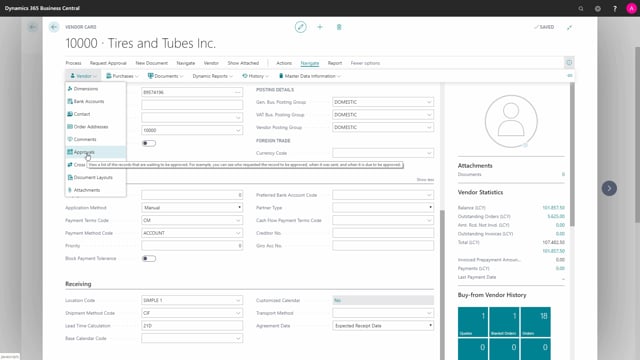


The vendor card in Business Central gives the purchase department quick access to a range of action buttons. Most of them sit under the Navigate menu, where you select Vendor to find the actions you need most often. This article walks through the buttons that matter day to day: Dimensions, Contact, Order Addresses, Comments, and Approvals.
Use the Dimensions button to view and edit the default dimensions set on a vendor. Use Order Addresses to store alternate delivery addresses for a vendor. Use Comments to keep dated notes on a vendor, and you can export the comment list to Excel. Use Approvals to see records waiting for approval on a specific vendor. The approval flow itself is configured elsewhere in Business Central.
Where to find the vendor action buttons
Most of the action buttons relevant for the purchase department are available on the vendor card. You reach them through the Navigate button, where you choose Vendor. From there, all the buttons you typically need are present. You can also enter several of these functions from other places in Business Central, but the vendor card gives you a single starting point.
Dimensions on the vendor card
The Dimensions button looks up the default dimensions set on the vendor. If you need more, you can add additional default dimensions directly on the vendor. This is useful when you want purchases tied to a specific vendor to carry the right dimension values automatically.
Contacts linked to the vendor
When you choose Contact, Business Central asks whether you want to create a contact. You can create a new contact or delete an existing one from the contact list. The contact list is the underlying table for the vendor, and the same applies to customers. If you do not need to make a change, you simply decline.
Order addresses for alternate delivery
The Order Addresses button shows alternate addresses for the vendor. If a vendor has more than one address, they appear in a list here. When a vendor has no order addresses registered, the list is empty, and you can create new order addresses directly from this screen.
Comments on a vendor
Use the Comments button to view notes registered on a vendor. Comments are marked with their dates, so you can see when each one was added. If you keep a large list of comments, you can export it to Excel for further use.
Approvals pending on a vendor
The Approvals button shows a list of records waiting to be approved on the vendor. If a vendor has no pending approvals, the list is empty. Keep in mind that the approval flow is set up elsewhere in Business Central. This view is only an overview of approvals for that exact vendor.
Q&A
Where do you find the action buttons for a vendor in Business Central?
Most of them are on the vendor card. You reach them through the Navigate button and choose Vendor, where the buttons you typically need are present.
Can you add more default dimensions to a vendor?
Yes. The Dimensions button looks up the default dimensions set on the vendor, and you can add more if you prefer.
What is the underlying table for a vendor’s contacts?
The contact list is the underlying table for the vendor, and the same applies to the customer.
Can you export vendor comments?
Yes. The comments are marked with their dates, and you can export the comment list to Excel.
Where is the approval flow configured?
The approval flow is set up elsewhere in Business Central. The Approvals button on the vendor card only gives you an overview of records waiting for approval on that specific vendor.