


Posting a purchase invoice in Microsoft Dynamics 365 Business Central is straightforward. This guide walks you through creating and posting a simple purchase invoice, using the example of an insurance cost that needs to be applied to goods you have already received.
When you post a purchase invoice, the invoice itself is deleted and replaced by a posted purchase invoice. You cannot edit a posted invoice afterwards, but you can open it to see exactly what happened.
To add a cost such as insurance to an existing item ledger entry, you use the Charge (Item) line type and assign the charge to the relevant purchase receipt lines. This is the key step that links the cost to the goods you bought earlier.
Creating a purchase invoice in Business Central
Start from the menu and open the Purchase Invoices list. Under normal circumstances this list is empty, because purchase invoices are posted directly once they have been entered. They do not stay in the list as open documents.
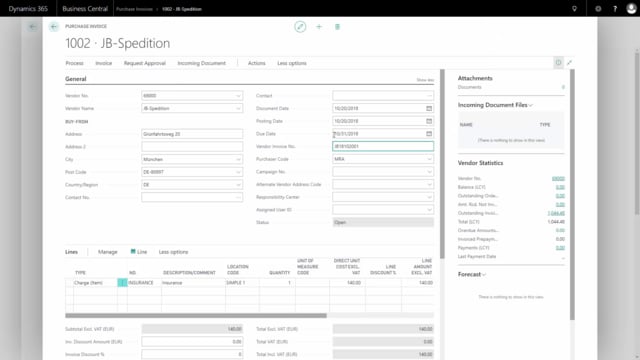
Create a new invoice and fill in the following:
- Vendor number: Select the vendor that sold you the insurance or goods.
- Posting date: Make sure the posting date is correct, or at least check it.
- Vendor invoice number: Enter the invoice number from the document you received, whatever that number is.
Choosing the right line type
On the invoice line you select what you are buying, just like on other purchase documents. The available types include G/L Account, Item, Fixed Asset and Charge (Item).
In this example, the goal is to apply an insurance cost to goods that were received earlier. To do that, choose Charge (Item) as the line type and select the relevant charge, in this case Insurance.
Enter a quantity of one and the unit cost shown on the invoice. This is the amount you want to distribute onto the received goods.
Assigning the item charge to a purchase receipt
Before you can post, you need to assign the item charge to an existing purchase receipt. This connects the cost to the specific goods you received.
Follow these steps:
- Open the line, then go to Line > Related Information > Item Charge Assignment.
- From the item charge assignment page, choose Get Receipt Lines to pull in the receipt lines you received earlier.
- If you have many lines, filter on the item number to find the correct one.
- Select the relevant receipt line.
- Go back to the item charge and use Suggest Item Charge Assignment so the cost is distributed across the selected lines.
Once the full amount is assigned, the item charge is ready to be posted onto the received goods.
Posting and reviewing the invoice
With the charge assigned, you can post the purchase invoice from the process menu. You can also print it if you need a copy.
After posting, you can open the posted purchase invoice to see what actually happened. Keep in mind that you cannot change a posted invoice. The purchase invoice you created is deleted during posting and lives on only as a posted document.
Q&A
Why is the Purchase Invoices list empty in Business Central?
Purchase invoices are normally posted directly once they have been entered, so they do not remain in the list as open documents. The invoice is deleted during posting and converted into a posted purchase invoice.
How do I add a cost like insurance to goods I have already received?
Use the Charge (Item) line type on the purchase invoice. Then assign the item charge to the existing purchase receipt lines so the cost is distributed onto the goods you received earlier.
How do I assign an item charge to a purchase receipt?
Open the line and go to Line, Related Information, Item Charge Assignment. Use Get Receipt Lines to pull in the receipt lines, filter on the item number if needed, select the correct line, and then use Suggest Item Charge Assignment to distribute the cost.
Can I edit a purchase invoice after posting it?
No. Once a purchase invoice is posted, you cannot change it. You can open the posted purchase invoice to review what happened, but it is read-only.
What information do I need to fill in when creating a purchase invoice?
You need the vendor number, a correct posting date, and the vendor invoice number from the document you received. On the line, you select the type of purchase, such as G/L Account, Item, Fixed Asset or Charge (Item).