
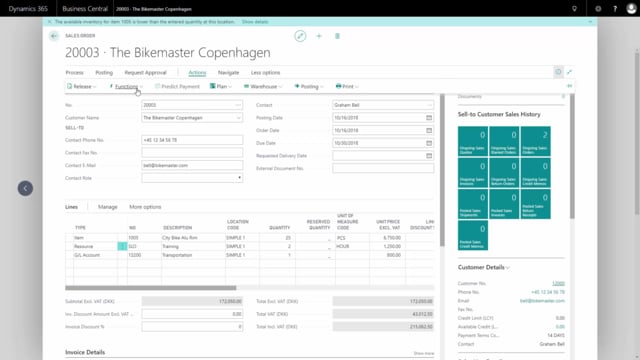


Creating a sales order in Microsoft Dynamics 365 Business Central is a quick process where you select a customer, add different types of order lines, calculate invoice discounts, and send a confirmation. This guide walks you through each step.
You start a new sales order from the main menu by choosing New Sales Order under the actions. When you select the customer number, Business Central fills in the header information automatically.
On the order lines you can choose between several types, including items, resources, fixed assets, and G/L accounts. This lets you sell physical products, services, and additional charges on the same order.
You can calculate the invoice discount through Actions and Functions. If the customer is set up with invoice discount terms, Business Central calculates the discount automatically.
You can print the order confirmation to PDF or send it by email. The confirmation uses the customer’s language code, so a customer with a Danish language code receives the confirmation in Danish.
Starting a new sales order in Business Central
From the main menu, select New Sales Order under the actions to go directly to creating a new sales order. On the new order, you select the customer number directly, and that fills in the header information for you.
Adding lines for items, resources, and G/L accounts
On the order lines, you can choose between several line types, including items, resources, and fixed assets. This flexibility lets you combine products and services on a single order.
In this example, the order contains three different line types:
- Item line: An item number for a product the customer wants to buy, with a quantity of 25 pieces.
- Resource line: Two hours of training, because the customer wants training for demonstrating his new bicycles.
- G/L account line: A quantity of one with a fixed amount, to charge the customer for transportation.
Calculating the invoice discount
To calculate the invoice discount, go to Actions, then Functions, and choose Calculate Invoice Discount. If the customer is set up with invoice discount terms, Business Central calculates the discount automatically based on those terms.
Adding header information and work descriptions
You can add more information on the order header. For instance, you can add a work description, such as a note that you are awaiting confirmation. This keeps relevant details attached to the order itself.
Printing or emailing the order confirmation
Once the order is ready, you can either send it by email or print the confirmation to PDF. On the printed confirmation, you see the invoice discount and all the order lines. The G/L account number is hidden on the print, so the customer does not see your internal account details.
The confirmation follows the customer’s language code. In this example, the order confirmation is printed in Danish because the customer has a Danish language code set up.
Q&A
How do you create a new sales order in Business Central?
From the main menu, select New Sales Order under the actions. Then select the customer number, which fills in the header information automatically.
What line types can you use on a sales order?
You can choose between items, resources, fixed assets, and G/L accounts. This lets you combine products, services such as training, and charges such as transportation on the same order.
How do you calculate the invoice discount on a sales order?
Go to Actions, then Functions, and choose Calculate Invoice Discount. If the customer is set up with invoice discount terms, the discount is calculated automatically.
Is the G/L account number visible on the printed order confirmation?
No. The G/L account number is hidden on the printed confirmation, so the customer does not see your internal account details.
What language is the order confirmation printed in?
The confirmation follows the customer’s language code. A customer with a Danish language code receives the confirmation in Danish.