
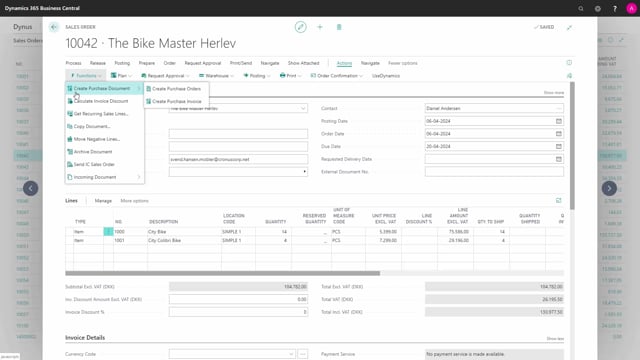


The sales order in Microsoft Dynamics 365 Business Central gives you a set of action buttons that cover everything from looking up order information to posting and sending the order. Knowing where to find each function saves you time in daily order handling.
Under Navigate, Order, you find order statistics, the customer card, dimensions, comments, connected assembly orders, and attachments. Under Documents, you see related shipments and invoices, which is useful when an order has been shipped or invoiced across several documents.
Under Actions, Functions, you can create purchase documents directly from the sales order, calculate invoice discounts manually, and use Copy Document to reuse an existing document in the system.
Under Posting, you can post the order, post and create a new order, post and send using the document sending profile, run a test report, and preview the posting before you commit it. You can also print a pro forma invoice, a work order, or a pick instruction, email the order confirmation, and release or reopen the order.
Invoice discount can be set up to calculate automatically when the document is posted. You configure this in the Sales & Receivables Setup.
Finding order information under Navigate
The Navigate menu, under Order, gathers the information related to a specific sales order. Here you find the order statistics, which are grouped into tabs that you can collapse and expand. You can also navigate directly to the customer card from this point.
If dimensions have not been transferred from the customer, you can set them on the document here. The same menu lets you write comments on the order, see connected assembly orders, and add attachments.
Viewing related shipments and invoices under Documents
Under Documents, you can see the documents related to the order, both shipments and invoices. If the order has been shipped or invoiced across several documents, all of those related documents are listed here, so you get a full picture of what has already happened on the order.
Creating purchase documents and calculating invoice discounts
Under Actions, Functions, you can create purchase documents based on the sales order. This is practical when you need to purchase items to fulfil the order.
You can also calculate invoice discounts from here. This function is used when the customer has invoice discounts set up, but the document is not configured to calculate them automatically when posted. If you want this to happen automatically, you set it up in the Sales & Receivables Setup.
Copying an existing document to a new order
Copy Document is useful when you are on a blank order and want to copy a document that is already in the system. You click Copy Document, choose the document type you want to copy, and find the document number. You can then decide whether to include the header and whether to recalculate the lines.
Posting options on the sales order
Under Posting, you have several options. You can post the document, or post it and create a new order in one step. You can post and send the order using the document sending profile defined on the customer.
Before posting, you can run a test report to see what the report will look like once posted, and you can preview the posting. The preview gives you the related entries, so you can see exactly how the order would be posted before you commit.
Printing and emailing from the order
From the order you can print a pro forma invoice, a work order, or a pick instruction. You can email the order confirmation or print it from the Print button.
Releasing and reopening the order
To release the order, you use the Release button. If the order has already been released and you need to change something on it, you can reopen it again before making your changes.
Q&A
Where do I find order statistics on a sales order in Business Central?
You find the order statistics under Navigate, Order. The statistics are grouped into tabs that you can collapse and expand.
How do I set up invoice discounts to calculate automatically?
You configure automatic calculation of invoice discounts in the Sales & Receivables Setup. If it is not set up to calculate automatically when the document is posted, you can calculate it manually from Actions, Functions on the order.
How do I copy an existing document to a new sales order?
On a blank order, use Copy Document. Choose the document type you want to copy and find the document number. You can then choose whether to include the header and whether to recalculate the lines.
How can I see what a posting will look like before I post the order?
Under Posting, you can run a test report to see the report output, or use Preview Posting. The preview shows the related entries so you can see how the order would be posted before committing.
Can I change a sales order after it has been released?
Yes. If the order has already been released, you can reopen it before making your changes.
Where do I see related shipments and invoices for an order?
Under Documents on the sales order. If the order has been shipped or invoiced across several documents, all the related documents are listed there.