


The item card in Business Central contains a number of fields that span across departments. These are fields used by salespeople, purchasers, planners, warehouse staff, and others. This article walks through the most important cross-departmental fields and explains what they control.
The Blocked field stops all transactions on an item, so nothing can be posted on it. The Type field defines whether an item is an Inventory item, a Non-inventory item, or a Service item, and you should set this when you create the item. The Automatically Extended Text field pulls any attached extended text into purchase and sales documents automatically.
The Prevent Negative Inventory field controls whether you can sell or draw an item below zero stock. When set to No, you can sell items you do not yet have in stock. When set to Yes, the system blocks that.
The inventory and quantity fields on the item card, such as Inventory, Qty. on Purchase Order, Qty. on Production Order, and Qty. on Sales Order, are calculated automatically. You cannot type values into them. They sum the underlying entries and document lines, and you can drill into each one to see the detail.
Blocking items and choosing the item type
The Blocked field determines whether an item should be blocked from transactions. When an item is blocked, you cannot post anything on it.
The Type field lets you decide how the item behaves. You can select Inventory if it is an item you count, store, and handle in the warehouse. If you only want to use the item for services and you do not want the warehouse to handle it, you select one of the two other types: Non-inventory or Service. This choice should be made upfront, when you create the item, because it affects how the item works throughout the system.
Automatically extended text on documents
The Automatically Extended Text field works together with the extended text attached to the item. If you select this field and the item has extended text in the extended text table, that text is pasted into purchase and sales documents automatically, following the setup in the extended text. Without the check mark, you have to pull the extended text into the order documents manually.
Prevent Negative Inventory and the difference between No and default No
On the Inventory tab there is a field called Prevent Negative Inventory, which defaults to No. There is a difference between a default No and a No that someone has actively chosen. When the field shows No, it means somebody has actually selected No. A default No simply means nobody has looked into the field.
The Prevent Negative Inventory setting makes it possible to stop an item from being drawn negative. In practice, that means you cannot sell the item if you do not have enough on inventory. If the field is set to No, you can sell the item even though it is not yet on stock.
Calculated quantity fields on the item card
The item card also contains a range of calculated fields. You cannot enter values into these fields. The system calculates them automatically from the underlying entries and document lines, and you can drill into each one to see where the number comes from.
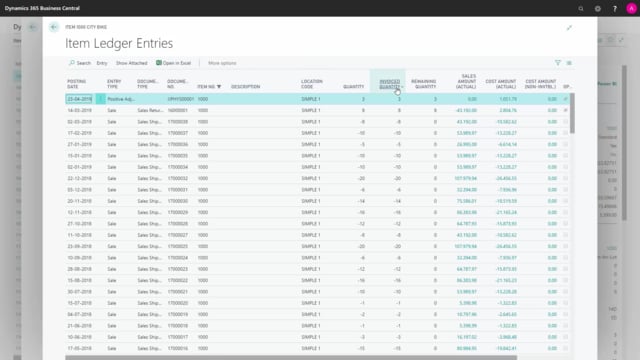
The Inventory field shows how many items you have on inventory. If you look into the field, you see the item ledger entries with all the remaining quantities, and the field sums those up. It sums on quantity, but the result matches the remaining quantity.
The other calculated fields work the same way:
- Qty. on Purchase Order looks into purchase orders.
- Qty. on Prod. Order looks into production orders, and you can open the production order list from it.
- Qty. on Component Lines is the quantity that goes into production order component lines. This is a demand, whereas the quantity on production order is a supply.
- Qty. on Sales Order and the quantity on service orders are demands.
- Qty. on Job Order applies when you have items assigned to a job on a job planning line.
- Qty. on Assembly Order is the supply coming from an assembly order.
- Qty. on Assembly Component is the demand for the assembly order component lines.
Together these fields give most departments working in Business Central a clear overview of supply and demand for each item.
Q&A
What is the difference between a default No and a chosen No in the Prevent Negative Inventory field?
A chosen No means someone has actively selected No on that item. A default No means nobody has looked into the field, and the system simply shows the default value.
Can I sell an item I do not have in stock in Business Central?
Yes, if Prevent Negative Inventory is set to No, you can sell the item even though it is not yet on inventory. If you set it to Yes, the system blocks the item from being drawn negative.
Why can’t I type a value into the inventory and quantity fields on the item card?
Those fields are calculated automatically from item ledger entries and document lines. They are display fields that sum the underlying data, so you cannot enter values directly.
What does the Automatically Extended Text field do?
If the field is checked and the item has extended text attached, that text is pasted automatically into purchase and sales documents according to the extended text setup. Without the check mark, you have to add the extended text manually.
What is the difference between the quantity on production order and the quantity on component lines?
The quantity on production order is a supply, because it represents items being produced. The quantity on component lines is a demand, because it represents items consumed in the production order component lines.