
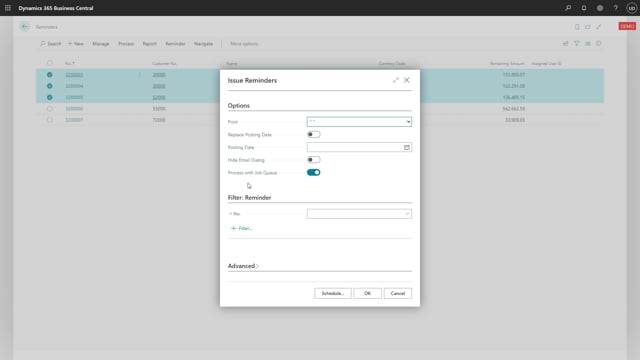


In Microsoft Dynamics 365 Business Central you can bulk issue reminders and send them in a single operation instead of handling each customer separately. You start the process from the reminder list, choose Issue and Send Batch, and let the system handle the rest.
You should run the batch job with a job queue so it processes in the background. This lets you keep working while the reminders are issued and sent. You can also set the posting date before you confirm the job.
After the job queue runs, you can refresh the list to confirm the reminders have been issued and sent. The Issued Reminders page shows the records, and you can verify that the email has actually gone out.
Bulk issuing reminders in Business Central
Instead of issuing reminders one at a time, you can handle them as a batch. From the reminder process, you select Issue and Send Batch. This issues the reminders and sends them to your customers in the same step.
Running the batch with a job queue
We recommend running this process with a job queue. The batch then runs in the background, so you can keep working on other tasks while the reminders are processed. Before you confirm, you can set the posting date for the reminders.
Once you click OK, the reminders are scheduled to run, provided the job queue is active. When the job queue picks up the task, the reminders are issued and sent automatically.
Checking that reminders have been issued and sent
When the job has run, refresh the list to see that the reminders have been issued and sent. Open Issued Reminders to view the individual records. From there you can confirm that the email has been sent to the customer.
Q&A
How do you send reminders in bulk in Business Central?
Go into the reminder process and choose Issue and Send Batch. This issues the reminders and sends them to your customers in one operation, rather than handling each customer individually.
Should you run the reminder batch in the background?
Yes. Run the batch with a job queue so it processes in the background. This lets you keep working while the reminders are issued and sent.
Can you set the posting date when issuing reminders as a batch?
Yes. You can replace or set the posting date before you confirm the job, then click OK to schedule the reminders.
How do you confirm that reminders have been sent?
Refresh the reminder list after the job queue runs to see that the reminders have been issued and sent. Open the Issued Reminders page to view the records and confirm that the email has been sent.