
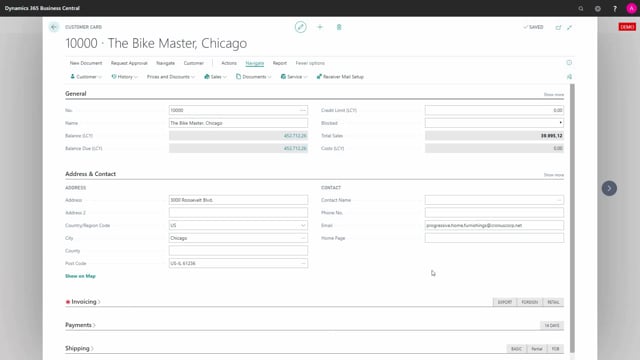


In Microsoft Dynamics 365 Business Central, you can add CC and BCC email addresses to your customers and vendors using document handling. This lets you automatically copy specific email addresses when you send documents to a customer or vendor.
You set up CC and BCC addresses per document type on the customer card. Go to the customer card, choose Navigate, and open the Receiver Mail Setup. There you define which CC and BCC addresses apply to each individual document type.
To send all documents as CC to a particular email address, you must fill in that address for each document type separately. There is no single setting that applies the CC to every document at once.
Adding CC and BCC addresses to customers and vendors in Business Central
A request that comes up often is companies wanting to add CC and BCC addresses to their customers and vendors. This is possible in Business Central through document handling, and it gives you control over who gets copied when you send documents.
Setting up CC and BCC email addresses on the customer card
You configure this directly on the customer card. From the customer card, go to Navigate and open the Receiver Mail Setup. Here you can define a CC and BCC email address for each individual document you send to your customer.
The setup works per document type. For example, you can set a CC email address that only applies when you send a posted sales invoice. In that case, the CC is added when you send the posted sales invoice, but not when you send a sales quote or a sales order.
Sending all documents as CC to one address
If you want every document to be sent as a CC to a specific email address, you need to fill in that address for each of the document types you send to the customer. There is no global option, so you set it up document by document.
Q&A
Can you add CC and BCC addresses to customers and vendors in Business Central?
Yes. You can add CC and BCC email addresses to your customers and vendors using document handling in Business Central.
Where do you set up CC and BCC email addresses for a customer?
On the customer card. Choose Navigate and open the Receiver Mail Setup, where you define the CC and BCC addresses for each document type.
Can you set a CC address that applies only to specific documents?
Yes. The setup is per document type. You can, for example, add a CC for posted sales invoices only, so it is not applied to sales quotes or sales orders.
How do you send all documents as CC to one email address?
You fill in the CC address for each document type you send to that customer. There is no single setting that applies the CC to all documents at once.