
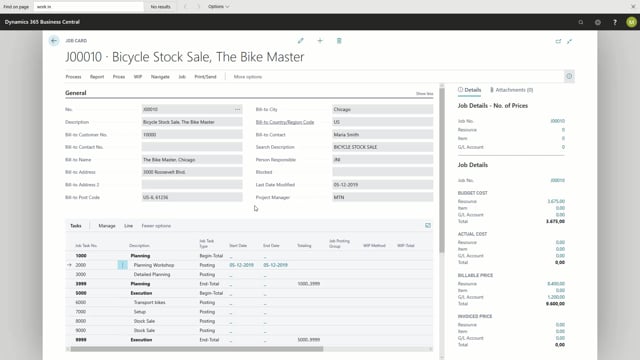


Job planning lines are the third level of the job hierarchy in Business Central. You use them to register your expectations for a job, and they form the foundation for creating sales invoices from the job.
You can create job planning lines of three types: Budget, Billable, and Both Budget and Billable. Use Budget to register expected usage you do not bill to the customer. Use Billable to register expected sales that get transferred to the sales invoice. Use Both Budget and Billable when your expected usage and expected sales are equal.
You open job planning lines from a specific job task of the type Posting, and the line inherits the job task number automatically. For each line you choose a type such as Resource or G/L Account, enter the quantity, and the system fills in the unit cost and unit price from the job setup or the resource’s standard setting.
As you create planning lines, the job task on the job card updates with budget and billable numbers. The total cost reflects lines of type Budget and Both Budget and Billable. The total billable price reflects lines of type Billable and Both Budget and Billable.
What job planning lines are and how they fit the job hierarchy
Job planning lines are the third level of the job hierarchy. You use them to register your expectations for the job, and they also serve as the foundation for creating sales invoices based on the job.
The three job planning line types: Budget, Billable, and Both Budget and Billable
A job planning line can be of type Budget, Billable, or Both Budget and Billable.
- Budget registers your expected usage. Use this for activities you do not want to bill directly to the customer, such as preparation time before a planning workshop.
- Billable registers your expected sales. This is what gets transferred to the sales invoice and billed to the customer, for example when you have agreed on a fixed price.
- Both Budget and Billable is for when your expected usage and expected sales are equal. The budgeted and billable lines match each other.
Creating job planning lines from a job task
Go to a job card in the application. You can add planning lines through Actions, or you can open them from a specific job task of the type Posting. When you open the planning lines from a job task, the line automatically inherits the job task number.
From there you start defining your job planning lines. The first thing to consider is the line type: Budget, Billable, or Both Budget and Billable.
Choosing a type and entering quantity, cost, and price
When the line type is Resource, you choose a specific resource for the planned usage. For example, you might choose John and expect two hours of work.
Once you select the resource, the unit cost and unit price are populated. This information comes from the specific setup on the job. If you have not made any setup on the job, the values come from the standard setting on the resource.
After you enter the quantity, the total cost and total line amount are updated. If you have agreed a fixed price for the workshop, you can bill that to the customer.
You can also handle a line on another type. For example, you can post it directly to a G/L account by choosing the relevant account.
Using Both Budget and Billable for equal usage and sales
When the expected usage and the expected sales are equal, for example the actual preparation work, you enter a line of type Both Budget and Billable. In this case you might have agreed that John does all the work in the planning workshop, and that it amounts to a day’s work.
How planning lines update budget and billable totals on the job card
After creating your planning lines, go back to the job card. The job task, for example the planning workshop, now shows updated numbers for budget and billable.
You can click on a field to see the underlying records:
- The budget for total cost sums lines of type Budget and type Both Budget and Billable, focusing on total cost.
- The total billable price sums job planning lines of type Billable and type Both Budget and Billable, focusing on the total line amount.
Once you start posting entries to the job, the actual total cost and the actually invoiced numbers will appear in these lists.
Q&A
What are the three types of job planning lines in Business Central?
The three types are Budget, Billable, and Both Budget and Billable. Budget registers expected usage you do not bill, Billable registers expected sales transferred to the invoice, and Both Budget and Billable is used when expected usage and sales are equal.
Where do the unit cost and unit price on a job planning line come from?
They come from the specific setup on the job. If you have not made any setup on the job, the values come from the standard setting on the resource.
Which line types are transferred to the sales invoice?
Lines of type Billable and type Both Budget and Billable are transferred to the sales invoice and billed to the customer.
How do I add job planning lines from a job task?
Open the planning lines from a specific job task of the type Posting. The line then automatically inherits the job task number. You can also add planning lines through Actions on the job card.
What is a good use case for a Budget-only line?
Use a Budget line for activities you do not want to bill directly to the customer, such as preparation time before a planning workshop.
When do the actual cost and invoiced numbers appear?
Once you start posting entries to the job, the actual total cost and the actually invoiced numbers appear in the lists on the job card.