
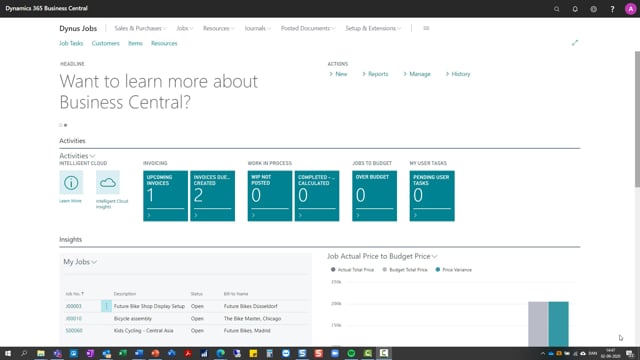


In Microsoft Dynamics 365 Business Central, the jobs list gives you an overview of every project registered in the system. This article walks through how to find the jobs list, what information it shows, and how it sits at the top of the jobs hierarchy.
You open the jobs list by searching for “jobs” in Business Central. The full list shows all jobs created in the system, not just your own.
If you are a project manager, you can also filter the view to see only the jobs assigned to you.
The fact box on the right side of the screen shows details for each job as you move through the list.
Opening the jobs list in Business Central
To see every job in the system, you go to the jobs list. The quickest way is to use the search function and type “jobs”. This takes you straight to the full overview of all jobs created in Business Central.
As a project manager, you have the option to view a filtered list of your own jobs as well. That can be useful for day-to-day work, but when you need the complete picture, the full jobs list is where you go.
What the jobs list shows
The jobs list contains all jobs created in the system. Each line represents a single project, so you get a clear overview of everything in progress.
On the right side of the screen, you have a fact box. As you move through the list and select different jobs, the fact box updates to show the details for the job you have highlighted. This lets you check key information without leaving the list view.
The jobs list as the top of the hierarchy
The jobs list is the top level of the jobs hierarchy in Business Central. From here you drill down into the individual jobs and their underlying structure, but the list itself is your starting point and your overview of all project activity.
Q&A
How do I open the jobs list in Business Central?
Use the search function and type “jobs”. This opens the full list of all jobs created in the system.
Can I see only my own jobs?
Yes. As a project manager, you can view a filtered list showing only the jobs assigned to you, in addition to the full list of all jobs.
What does the fact box show?
The fact box on the right side of the screen shows details for the job you have selected. It updates automatically as you move through the list.
Where does the jobs list fit in the structure?
The jobs list is the top level of the jobs hierarchy. From there you drill down into individual jobs and their details.