
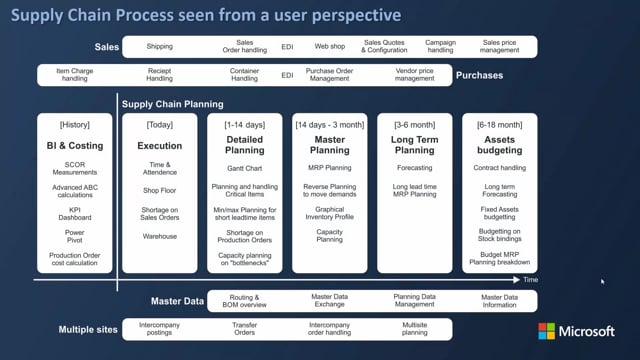


If you run master planning in Microsoft Dynamics 365 Business Central, you need to coordinate the dates between your long-term planning and the detailed planning done by your colleagues. The key is to set a planning start date in the planning worksheet that respects the period the detailed planners are already working on.
Released production orders and purchase orders belong to the detailed planners. When you run MRP planning, you should start your planning period after their locked window so you don’t re-plan orders they are actively working on.
A practical setup is to lock orders for the next two weeks, then start your master planning from that point. For example, you might plan from 1 May to 31 August, a three-month window that begins where the detailed planners’ locked period ends.
Coordinating detailed planning and long-term planning
As a master data planner, you have to respect the time interval that separates detailed planning from long-term planning. These are two different jobs, often handled by different people, and they need to line up.
You need to find out two things. First, what period the people doing detailed planning are working on, and how far ahead that goes. Second, when the people doing long-term planning start their work. The point where detailed planning ends and long-term planning begins is what you need to agree on.
Released production orders and purchase orders belong to detailed planning
Start by getting an overview of your existing released production orders and purchase orders. If you open your released production orders in Business Central, you can see whatever is there. These are the orders the detailed planning people are working on.
Your firm planned production orders are a mixture of what comes out of your master planning and what the detailed planning people release from that list. When you re-plan these, you have to be aware of which date period you are re-planning so you don’t interfere with the detailed planners’ work.
Setting the planning period in the planning worksheet
The simplest way to handle this is to lock the orders for a defined window. For instance, you can decide that for the next two weeks, the order is locked and not re-planned.
When you run the MRP planning from the planning worksheet, you set the starting date so it respects the dates you agreed with the detailed planning team. As an example, you might plan from 1 May and three months ahead until 31 August. That becomes your planning period.
The important part is agreement. Both the detailed planners and the long-term planners need to accept the same boundary so the planning runs don’t overwrite each other’s work.
Q&A
Why should I set a planning start date when running MRP in Business Central?
Setting a planning start date keeps your master planning from re-planning orders that the detailed planners are actively working on. The detailed planners own the released production orders and purchase orders in the near-term window, so your long-term planning should begin after that locked period.
How do I avoid conflicts between detailed planning and long-term planning?
Lock the orders for the near-term window, for example the next two weeks, and start your master planning from that point. Agree the boundary date with both the detailed planners and the long-term planners so everyone works within the same period.
What is a typical planning period for master planning?
A common setup is a three-month window. For example, you could plan from 1 May until 31 August. The exact dates depend on what you have agreed with your detailed and long-term planners.
What is the difference between released and firm planned production orders in this context?
Released production orders are handled by the detailed planners and sit in the near-term window. Firm planned production orders are a mixture of what your master planning generates and what the detailed planners release from that list, so you need to be aware of the date period when re-planning them.