
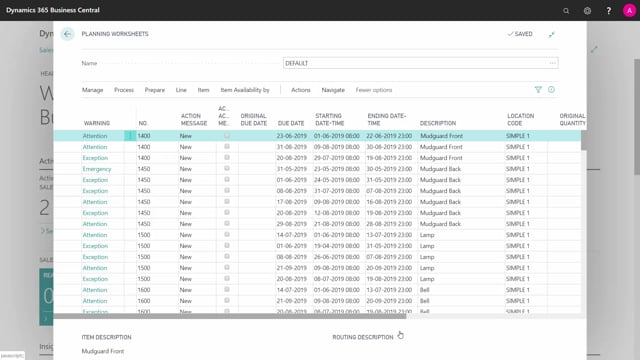


When you work as a purchaser in Business Central, you can run the planning worksheet to turn the production planner’s firm planned orders into a clean, manageable list of purchase suggestions. You filter the worksheet by your master planning period, by purchase items with low-level codes, and then narrow it down vendor by vendor.
You plan per vendor by filtering on the vendor number and handling one vendor’s lines at a time. If you don’t want everything on a single purchase order, you filter on the expected receipt date and create one purchase order per month.
You won’t always see brand new suggestions. Because the long-term planning is already done, existing purchase orders show up in the worksheet too, often as suggested changes rather than new orders. You need to review those and make sure they match what the worksheet now suggests.
How master planning splits between production and purchasing
In a typical setup, the master production planner handles the production orders first. They run the planning worksheet, calculate capacities, and work through everything related to production. Once they’re done with the master planning period for production orders, the work hands over to the purchaser.
As a purchaser, you want to plan based on all the firm planned orders the production planner has already created. Those firm planned production orders give you the demand you need to plan against. When the production side is as complete as possible, the planning worksheet gives you your best suggestion for purchase orders.
Running the planning worksheet as a purchaser
The process is straightforward. You go into the planning worksheet and calculate the plan. Then you set your filters to focus only on what’s relevant to purchasing:
- Filter on your master planning period.
- Filter on purchase items with low-level codes.
- Rely on the firm planned production orders the production planner already made.
With those filters in place, the worksheet lines become your suggestions for purchase orders. You can run through them and handle them line by line.
Planning per vendor and per month
Most purchase planners want to plan per vendor, and the planning worksheet supports that. You filter on the vendor number and handle one vendor at a time. For example, you can filter on vendor number 51000 and see all the lines for that vendor, with all the quantities and all the dates in one place.
You can take the filtering a step further when you don’t want everything on a single purchase order. If you’d rather create one purchase order per month, you filter on the expected receipt date for the different months. That way you control how the demand gets grouped into orders.
Creating the purchase orders
When you’ve worked through the lines, you check off the order lines you need to act on. Then you process and carry out the actions, and Business Central creates the purchase orders for you. This gives you a clean, controlled way to do your master planning as a purchaser.
Handling existing purchase orders in the planning period
Since you’ve already done the long-term planning, you’ll have purchase orders sitting in the system. In real life, the worksheet won’t only suggest brand new orders. It may suggest changes or upgrades to what already exists.
That means part of your job is to handle the existing purchase orders that fall inside the master planning period. You go through them and make sure they fit with whatever the worksheet now suggests, rather than treating every line as a fresh order.
Q&A
How do I plan purchases based on production demand in the planning worksheet?
Wait until the production planner has created the firm planned production orders for the master planning period. Then go into the planning worksheet, calculate the plan, and filter on your master planning period and on purchase items with low-level codes. The resulting lines are your purchase order suggestions.
Can I plan one vendor at a time in the planning worksheet?
Yes. Filter on the vendor number, for example 51000, and the worksheet shows all the lines, quantities, and dates for that vendor. You handle one vendor at a time.
How do I create a separate purchase order per month instead of one big order?
Filter on the expected receipt date for the different months. By grouping the lines by date, you control how the suggestions are split into individual purchase orders.
How do I turn worksheet lines into purchase orders?
Check off the order lines you need to act on, then process and carry out the actions. Business Central creates the purchase orders from those lines.
What happens to purchase orders that already exist when I run the worksheet?
Because you’ve already done the long-term planning, existing purchase orders appear in the worksheet, often as suggested changes or upgrades rather than new orders. Review these and make sure they fit with the current suggestions.