


If you work as a purchase planner in Microsoft Dynamics 365 Business Central, you know that demand, supply and dates change constantly. The requisition worksheet helps you keep up by suggesting changes to quantities and dates on your purchase orders. When you run the planning calculation, the system creates action messages for each line, and you need to read these carefully before acting on them.
The four action messages you will see are: change quantity, reschedule (move the line in date), change quantity and reschedule together, or change the order line. Do not delete and re-create lines to avoid making changes. That leaves you with too much in stock. Instead, use the carry out function to apply the suggested changes correctly.
You can keep specific purchase order lines out of the requisition worksheet by setting the planning flexibility on the line to locked. Be aware that this functionality may not be available in the Essential license, so test it in your own environment.
How the requisition worksheet suggests changes to purchase orders
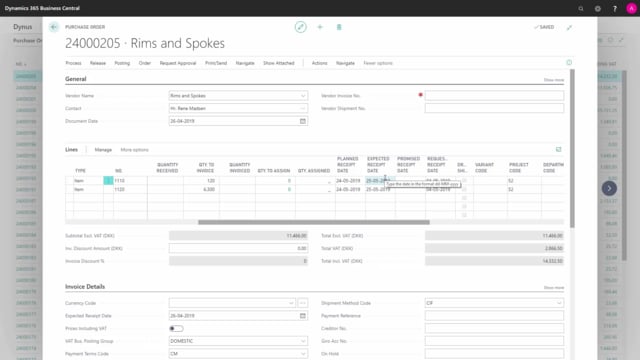
Imagine a purchase order with quantities on items and an expected receipt date. Your demand has changed, so you know the current order no longer matches what you need. When you run the planning calculation in the requisition worksheet, the same way you do every time you plan, the system automatically suggests how to adjust the order.
After breaking down the quantities, the worksheet can suggest new quantities, changed quantities and similar adjustments. Each line comes with an action message that tells you what the system recommends.
The four action messages and what they mean
When you look at the action messages on a line, you can see one of the following:
- Change quantity on a purchase line.
- Reschedule, which means moving the purchase line in date.
- Change quantity and reschedule, which does both at the same time.
- Change the order line.
The time period over which the system applies these changes depends on the dampener you have set up on the item card and on the planning parameters you use. For example, whether you plan with a fixed reorder quantity, lot-for-lot or another reordering policy affects how the suggestions come out.
Why you should not delete lines to avoid changes
A common mistake is to delete some of the suggested lines because you do not want to change or cancel anything, and then carry out only the new line. This leaves you with too much in stock. When the system suggests lines like this, take care to handle the action messages as intended rather than deleting them.
Using planning flexibility to lock purchase order lines
If you use the planning flexibility functionality, you can lock a purchase order line so it does not appear in the requisition worksheet. To do this, you set the checkmark for planning flexibility on the purchase order line.
This functionality may not be included in the Essential license. Test it in your own environment to confirm whether it is available to you.
Carrying out the suggested changes
When you are ready to apply the suggested changes, use the process and carry out function and confirm. The system then updates the purchase order lines as suggested, including the dates on the purchase order.
If the calculation was correct, you can verify the result by running the planning calculation again with exactly the same parameters. Nothing new should appear, because the demand is now covered. When you look back at your purchase order, the dates should be updated according to the suggestions.
Q&A
What are the four action messages in the requisition worksheet?
The requisition worksheet can suggest to change the quantity on a purchase line, reschedule the line by moving it in date, change quantity and reschedule together, or change the order line.
Why should you not delete lines in the requisition worksheet to avoid changes?
If you delete the suggested lines and only carry out the new one, you end up with too much in stock. Handle the action messages as intended instead of deleting them.
How do you keep a purchase order line out of the requisition worksheet?
Use the planning flexibility functionality and set the checkmark on the purchase order line to lock it. Locked lines do not appear in the requisition worksheet.
Is the planning flexibility functionality available in the Essential license?
It may not be included in the Essential license. Test it in your own environment to confirm whether it is available.
What determines the time period over which the system applies planning changes?
It depends on the dampener you set up on the item card and the planning parameters you use, such as fixed reorder quantity or lot-for-lot.
How do you apply the suggested changes to a purchase order?
Use the process and carry out function and confirm. The system updates the purchase order lines and dates as suggested.